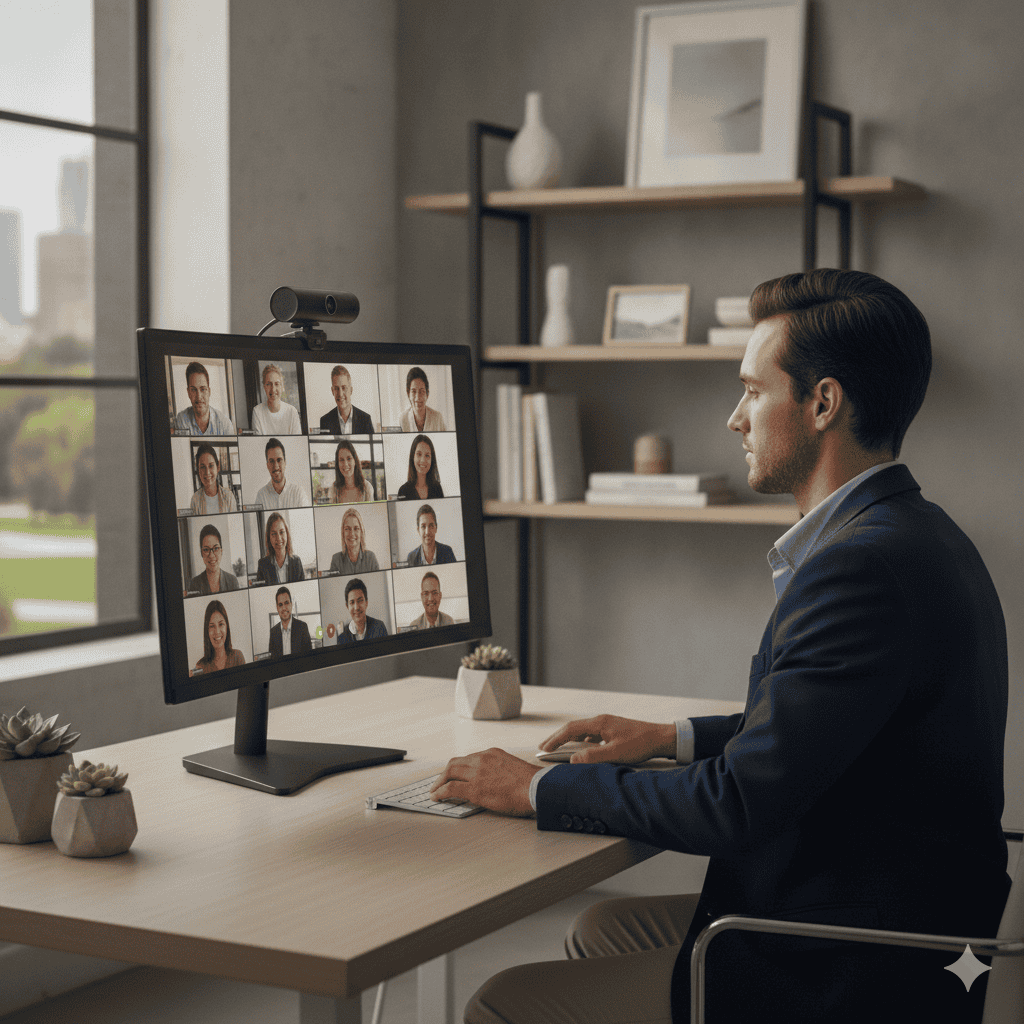
So I’ve been on about 3,000 Zoom calls this year (remote work life, am I right?), and let me tell you – your built-in laptop camera is doing you zero favors. I learned this the hard way when my boss asked if I was calling from a cave during our quarterly review.
The thing is, looking professional on video calls isn’t just about good lighting anymore. Your webcam quality directly impacts how colleagues perceive your engagement and competence. Sounds dramatic, but it’s backed by research from Stanford’s Virtual Human Interaction Lab.
After testing dozens of webcams over the past year, I’ve narrowed down the absolute best options for Zoom meetings. These aren’t just specs on paper – I’ve put each through real-world video calls, tested their microphones, and figured out which ones actually work when your internet decides to act up.
Logitech C920x HD Pro
Still the gold standard for Zoom calls. Crisp 1080p video, dual mics that actually work, and it just never fails. Around $50-65 makes it a no-brainer.
Quick Comparison
| Webcam | Best For | Resolution | Price Range | Get It |
|---|---|---|---|---|
| Logitech C920x | Most people | 1080p | $50-65 | Check → |
| Logitech Brio 4K | Premium users | 4K | $140-160 | Check → |
| Dell UltraSharp 4K | Professionals | 4K | $180-200 | Check → |
| Anker PowerConf C200 | Budget buyers | 2K | $40-50 | Check → |
| Razer Kiyo Pro | Content creators | 1080p | $130-150 | Check → |
The 5 Best Webcams for Zoom Meetings

This is the webcam I keep coming back to, and there’s a reason it’s been dominating office setups for years. The C920x delivers consistently good 1080p video that looks natural on Zoom calls – no weird color shifts or that artificial sharpening you get with some newer models.
What really sets it apart is the reliability factor. I’ve used this through hundreds of calls and it’s never once failed to connect or produced choppy video. The dual microphones pick up your voice clearly without making you sound like you’re in a tunnel, which is more than I can say for most laptop mics.
The autofocus works fast enough that you won’t look blurry when you lean forward to check something on your screen. It also handles different lighting conditions pretty well – not amazing in dim rooms, but decent enough for most home office setups.
- Rock-solid reliability across all video platforms
- Natural-looking 1080p video without oversaturation
- Dual mics that actually improve call audio quality
- Works immediately with Zoom, Teams, and everything else
- Great value at around $50-65
- No built-in privacy shutter
- Struggles in very low light situations
- Mount feels a bit flimsy on thin laptop screens

The Brio is what you get when Logitech decides to throw everything they’ve learned about webcams into one device. The 4K sensor produces incredibly crisp video that makes you look like you’re using a professional camera setup. But here’s the thing – you’ll mostly be using it at 1080p for Zoom calls anyway since that’s all most platforms support.
Where the Brio really shines is in challenging lighting conditions. The HDR feature automatically adjusts exposure so you don’t look washed out against a bright window or invisible in a dim room. It’s like having a smart photographer constantly tweaking your camera settings.
The Windows Hello facial recognition is surprisingly useful too. No more typing passwords when you sit down at your desk – it just recognizes your face and logs you in instantly.
- Exceptional 4K video quality that downscales beautifully
- HDR handles tricky lighting situations automatically
- Windows Hello facial recognition works flawlessly
- 90-degree field of view great for showing workspace
- Premium build quality that feels substantial
- Expensive at around $140-160
- 4K features are overkill for most Zoom calls
- Can run warm during extended use

Dell’s entry into the premium webcam space is clearly aimed at business users, and it shows in all the right ways. The image quality rivals the Logitech Brio, but with more natural color reproduction that looks professional rather than oversaturated.
What sets the UltraSharp apart is the AI-powered auto-framing feature. It actually follows you as you move around, keeping you centered in the frame. This is incredibly useful if you tend to gesture while talking or need to grab something during calls. The privacy shutter is also magnetic and feels much more premium than the plastic flaps on cheaper models.
The Dell Camera app gives you granular control over everything – white balance, exposure, field of view, and noise reduction. It’s the kind of fine-tuning that makes you look consistently good across different lighting conditions throughout the day.
- AI auto-framing keeps you centered automatically
- Excellent color accuracy for professional calls
- Magnetic privacy shutter feels premium
- Comprehensive camera controls via Dell app
- Works great with all major video platforms
- Pricey at around $180-200
- Auto-framing can be distracting initially
- Dell software required for advanced features

Anker surprised me with this one. For around $40-50, the PowerConf C200 delivers 2K video quality that honestly looks better than some webcams costing twice as much. The wide 115-degree field of view means you can fit more of your workspace in frame, which is great if you need to show documents or whiteboards during calls.
The auto-focus is snappy and the color reproduction is surprisingly good for a budget option. It doesn’t have the advanced AI features of pricier models, but it nails the basics – clear video, decent audio, and plug-and-play simplicity.
The privacy shutter is a nice touch at this price point, and the mount feels sturdy enough to stay put on your monitor. It’s not going to win any design awards, but it gets the job done without any fuss.
- Excellent value with 2K video under $50
- Wide 115° field of view shows more workspace
- Fast auto-focus keeps you sharp
- Built-in privacy shutter
- Works immediately with all platforms
- Basic plastic build feels cheap
- No advanced software features
- Microphone quality is just okay

The Kiyo Pro is what happens when a gaming company decides to make a webcam – it’s engineered for people who care about looking good on camera. The large sensor and adaptive light sensor make this the best option I’ve tested for low-light situations. Even in my dim home office, it produces clean video without that grainy noise you get from other webcams.
The 60fps capability is overkill for Zoom meetings, but if you’re also streaming or recording content, it makes a noticeable difference in motion smoothness. The uncompressed video output means your face doesn’t get that weird blocky compression artifacts during movement.
Razer’s Synapse software gives you professional-level controls over exposure, gain, and color balance. It’s like having a tiny studio camera that happens to work great for video calls too.
- Exceptional low-light performance beats everything else
- 60fps option for smooth motion
- Uncompressed video looks incredibly clean
- Professional camera controls via Synapse
- Great for both meetings and content creation
- Expensive at around $130-150 for 1080p
- Single microphone not as good as dual-mic setups
- Razer software can be bloated
How to Choose the Right Webcam for Zoom
After testing webcams for over a year, I’ve learned that specs on paper don’t always translate to better Zoom calls. Here’s what actually matters when you’re choosing one.
Resolution vs. Reality
Everyone gets excited about 4K webcams, but here’s the truth – Zoom maxes out at 1080p for most users, and even that requires a solid internet connection. A good 1080p webcam like the C920x will look better than a cheap 4K model because the sensor quality matters more than raw pixel count.
That said, higher resolution webcams often have better sensors and image processing, which can improve your 1080p video quality through downsampling. So 4K models like the Brio aren’t just marketing fluff – they actually do produce better 1080p video.
Low Light Performance
This is where most webcams fall apart. Your laptop camera looks terrible because it can’t handle anything less than perfect lighting. Look for webcams with larger sensors (like the Kiyo Pro) or HDR features (like the Brio) if your workspace isn’t blessed with great natural light.
The simple test: turn off your overhead lights and see how you look. If you disappear into darkness or look like a grainy mess, you need a better webcam for realistic lighting conditions.
Microphone Quality
Most people focus on video quality and ignore audio, but bad audio is more distracting than mediocre video. Dual microphones (like on the C920x) provide better noise cancellation and clearer voice pickup than single mics.
But here’s the thing – if you’re serious about audio quality, you’re better off with a dedicated USB microphone anyway. Don’t choose a webcam based solely on its microphone specs.
Platform Compatibility
Every webcam I’ve recommended works plug-and-play with Zoom, Teams, Google Meet, and other major platforms. But some advanced features require specific software – like the Dell’s auto-framing or the Razer’s professional controls.
Make sure you’re okay with installing extra software if you want those premium features. Some corporate IT departments don’t allow additional camera software, so check your company policies first.
Mount Stability
This sounds boring but matters more than you’d think. A wobbly webcam that shifts every time you type is incredibly distracting on calls. Look for models with sturdy clamp mounts rather than lightweight clips that barely hang on.
If you’re using a thin laptop screen, make sure the mount won’t damage it or fall off constantly. Some webcams come with alternative mounting options for different setups.
Logitech C920x HD Pro
After testing everything from budget models to premium 4K options, the C920x remains the best choice for most people. It delivers reliable 1080p video quality, clear audio, and just works with every platform you’ll use. The price-to-performance ratio is unbeatable at around $50-65.
Quick Takeaways
- The Logitech C920x offers the best balance of quality and value for most remote workers
- Premium features like 4K and AI auto-framing are worth it if you’re frequently on important client calls
- Budget options like the Anker C200 deliver surprisingly good 2K quality for under $50
- Low-light performance varies dramatically between models – test in your actual workspace conditions
- Don’t choose a webcam solely for its microphone – dedicated USB mics offer better audio quality