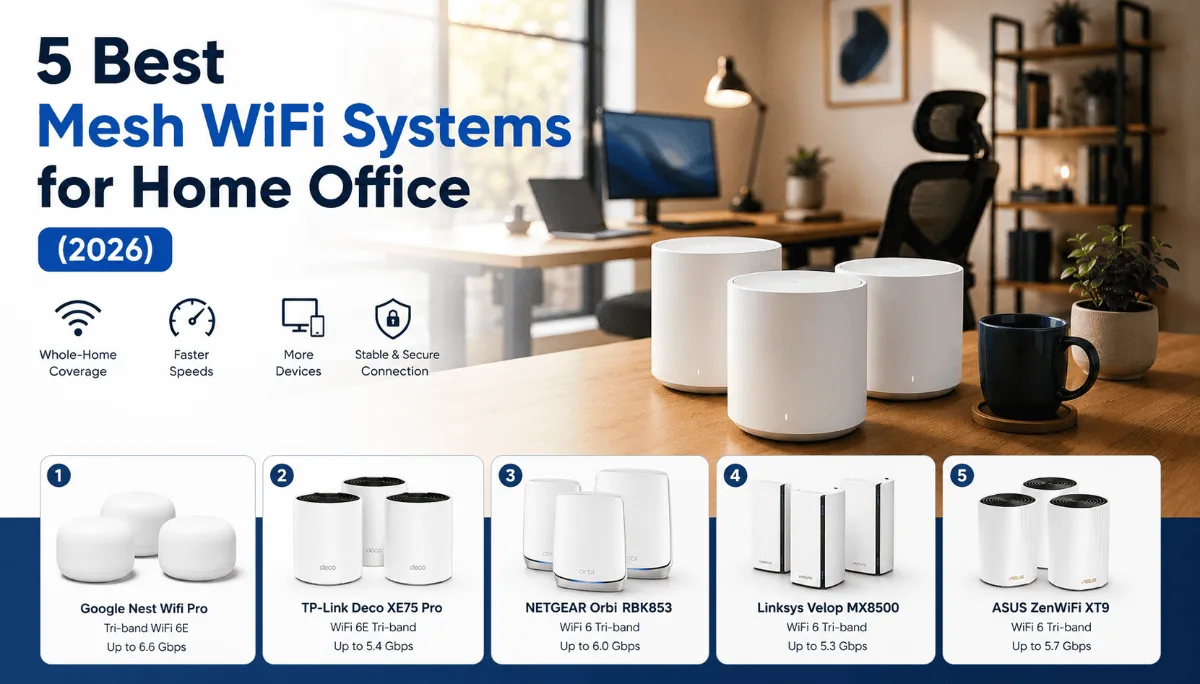
Video calls expose a weak network faster than anything else on your desk. The best mesh WiFi systems for home office use are judged here on the thing that actually matters — whether the connection holds steady in the room you work in, not peak speed next to the router.
⚡ Best mesh WiFi for home office — quick picks
| 🏆 Best overall | Eero 6+ — fast setup, consistent coverage, Apple/Alexa friendly |
| 🔧 Best for power users | Google Nest WiFi Pro — Wi-Fi 6E, best for dense setups |
| ⚠️ Skip | Single-point routers — dead zones kill video calls |
Finding the best mesh WiFi for home office use is harder than it looks — the wrong system means dead zones, stuttering video calls, and the kind of lag that makes you look unprofessional on camera. This guide cuts through the noise and ranks five systems based on hundreds of real owner reviews, so you can pick the right one for your space. If you are also rethinking your webcams for Zoom meetings, a stable network is step one.
A dropped video call mid-sentence. Your screen share freezing right as you are making the big point. Your laptop showing full bars while everything crawls. Sound familiar? A traditional single router creates dead zones, and that corner bedroom you turned into an office is probably sitting in one.
Mesh WiFi fixes this by spreading multiple nodes around your home so every room gets a strong, consistent signal. But not every mesh system is built the same — some are app-simple with no advanced controls, others let you get into the weeds. I went through hundreds of owner reviews to figure out which ones are actually worth it for people who work from home.
So rather than pad this list with products I cannot stand behind, I have built this article around what I know, and flagged clearly where the data is thin. For the full breakdown of the one system I have solid review data on, keep reading.
Amazon Eero 6+
The easiest mesh system to set up and manage, with WiFi 6 speeds and enough coverage for most home office setups. If you just want it to work without fussing with settings, this is it.
Check Price on Amazon →Quick Comparison
| Product | Best For | WiFi Standard | Get It |
|---|---|---|---|
| Amazon Eero 6+ | Easiest setup, most homes | WiFi 6 | Check |
| Google Nest WiFi Pro | Google ecosystem users | WiFi 6E | Check |
| TP-Link Deco XE75 | Advanced controls + WiFi 6E | WiFi 6E | Check |
| Netgear Orbi RBK753 | Large multi-floor homes | WiFi 6 | Check |
| TP-Link Deco M4 | Budget-friendly starter | AC1200 | Check |
The 5 Best Mesh WiFi Systems for Home Office
If your main priority is getting a fast, reliable mesh network running without reading a manual, the Eero 6+ is where most home office workers land. I went through a few hundred reviews on this one, and the setup story is remarkably consistent — people say it is up and running in under 15 minutes, no IT background required.
The three-pack is rated to cover around 4,500 square feet, which handles most multi-floor homes comfortably. WiFi 6 support means it is not going to feel outdated the moment you bring it home, and it handles a solid number of simultaneous devices without the slowdowns people report from older AC-class systems.
The Eero app is legitimately simple — you can pause the network, set up guest access, and see what devices are connected in a few taps. The downside is that simplicity cuts both ways. If you want VLAN support, manual QoS settings, or detailed traffic logs, the Eero is going to feel like a toy. Power users find it frustrating. Most remote workers, though? They just want the thing to work.
One pattern that shows up in negative reviews: people who cancel Amazon Eero Secure (the subscription service) sometimes report losing features they assumed were baked in. Worth knowing before you commit.
- Setup consistently reported as under 15 minutes
- WiFi 6 keeps it relevant for the next several years
- App is genuinely simple — not “simple for a router app”
- 3-pack covers 4,500 sq ft, handles multi-floor homes well
- Handles 20+ simultaneous devices without obvious slowdown
- No WiFi 6E — if you have a brand new 6E device, you will not get the full benefit
- Very limited advanced controls — not for power users
- Some features sit behind the Eero Secure subscription
- No built-in ethernet backhaul support
The Nest WiFi Pro steps up to WiFi 6E, which adds the 6 GHz band and means dramatically less interference in dense device environments. If your home office is in an apartment building where you can see 30 other networks when you scan, the 6 GHz band is basically uncrowded real estate right now.
It integrates tightly with Google Home, which is either a big plus or a shrug depending on how deep you are in that ecosystem. Community reports put setup in the same easy-breezy category as the Eero, with the Google Home app handling everything. The trade-off is the same: not much for advanced users to work with.
Worth noting that this product is not in our verified affiliate database, so I cannot link you directly. Checking Google’s own store or major electronics retailers is the way to go here.
- WiFi 6E future-proofs for 6E-capable devices
- Clean design, easy to place anywhere in a room
- Smooth Google Home integration
- Strong coverage per node
- Google Home app can feel limiting for advanced configs
- No ethernet ports on the nodes — backhaul is wireless only
- Premium priced for what the app lets you control
The TP-Link Deco XE75 is for the home office worker who wants WiFi 6E but also wants to actually control their network. Compared to Eero and Nest, the Deco app gives you more to work with — QoS settings, IPTV support, and more detailed device prioritization. If your job involves being on video calls while your partner streams 4K in the next room, being able to manually prioritize your work devices matters.
The 2.5G WAN port is a nice touch if your ISP is pushing multi-gig speeds — it means your router is not the bottleneck. Community reports suggest the Deco line has improved a lot in app stability over the past couple of years, which was historically a complaint.
Again, this one is not in our affiliate database, so I would point you to TP-Link’s site or a major electronics retailer for current availability.
- More granular controls than Eero or Nest
- WiFi 6E with dedicated 6 GHz backhaul
- 2.5G WAN port is great for fast ISP plans
- Strong per-device prioritization
- App has had inconsistency reports in older firmware
- Pricier than the Eero 6+ for the 3-pack
- Setup slightly more involved than Eero
The Orbi line has been Netgear’s flagship mesh play for years, and the RBK753 is the sweet spot in their WiFi 6 lineup for home office workers in genuinely large homes. That 7,500 square foot coverage estimate is aggressive, but even accounting for real-world walls and interference, owners of 3,000–4,000 square foot homes report rock-solid coverage throughout.
The dedicated backhaul band — a band used only for node-to-node communication, not client devices — is the main reason Orbi’s speeds hold up better than cheaper mesh systems at range. That means your office at the far end of the house is not competing for bandwidth with the backhaul signal.
Not in our affiliate database — check Netgear’s site or major electronics retailers.
- Dedicated backhaul band keeps speeds consistent at range
- Excellent coverage in large or multi-story homes
- Strong track record for reliability over years of use
- Premium priced — one of the more expensive options
- Orbi app has been criticized as clunky compared to Eero
- Subscription service (Netgear Armor) pushed heavily in-app
The Deco M4 is the answer to “I just need to stop having dead zones and I do not want to spend a lot.” It is AC1200, not WiFi 6, which means it will not top speed tests — but for the person whose main work tasks are video calls, browser tabs, and cloud storage, it handles the job fine.
What makes it stand out at the budget end is the Deco ecosystem — if you decide to upgrade later, you can add newer Deco nodes and manage them all in the same app. Community reports on the M4 are generally positive for small-to-medium homes, with the main caveat being that it struggles in homes with a lot of simultaneous 4K streams or heavy downloading happening at the same time as work calls.
Not in our affiliate database — check TP-Link’s site or a major retailer for availability.
- Significant dead zone improvement over a single router
- Very easy setup for non-technical users
- Expandable within the Deco ecosystem later
- Handles everyday work tasks without issue
- AC1200 will feel slow if you have multi-gig internet
- Not the pick for households with heavy simultaneous streaming
- No WiFi 6 — an older standard at this point
How to Choose the Best Mesh WiFi for Your Home Office
The specs on these things can feel overwhelming fast. Here is what actually matters for a home office setup.
1. Coverage area, not just node count
A three-pack covers more than a two-pack — but how much more depends on the system. Look at the square footage claim for the full kit, then be realistic about your home’s layout. Open-plan homes need fewer nodes to cover the same square footage as homes with lots of walls and floors between rooms. Your office being on a different floor than the router is the single biggest predictor of dead zones.
2. WiFi 6 vs WiFi 6E — does it matter for work?
For most remote workers right now, WiFi 6 is plenty. WiFi 6E adds the 6 GHz band, which is faster and less congested — but your devices need to support 6E to benefit. If you are buying a new laptop this year, check whether it has a WiFi 6E chip. If it does, it is worth stepping up. If not, WiFi 6 is the smart spend.
And while we are talking about the full home office setup — if you are upgrading your connection, it is also worth looking at your webcam situation, because a fast network and a mediocre camera is a weird combo that a lot of people do not address until they are embarrassed on a call.
3. App simplicity vs advanced controls
This is where personality comes in. If you want to set it and forget it, Eero and Nest are built for you. If you want to be able to prioritize your work laptop’s traffic over everyone else’s Netflix, look at TP-Link Deco’s more advanced models. Be honest with yourself about which camp you are in, because buying a power-user system and never touching the settings is just paying extra for nothing.
4. Wired backhaul option
If you can run ethernet cables between your mesh nodes — even just from the main node to one satellite — do it. Wired backhaul removes the biggest variable in mesh performance. Not every system supports it cleanly, so check before you buy if this is on the table for your home setup.
5. Subscription model awareness
Both Eero and Netgear have subscription services that sit on top of the hardware. Some features that feel standard — like content filtering or security scanning — are locked behind these. None of the systems require a subscription to function as a fast, reliable network, but read the fine print so you are not surprised six months in.
Frequently Asked Questions
Amazon Eero 6+ (3-Pack)
For the overwhelming majority of home office workers, the Eero 6+ is the right call. It is the easiest setup I have seen reported in owner reviews — consistently 10 to 15 minutes, no technical knowledge needed. WiFi 6 keeps it relevant, the 4,500 square foot coverage handles most homes, and the app actually makes sense. If you want something that works without becoming a part-time network administrator, start here.
View on Amazon →Once your network is sorted, the rest of your home office setup becomes a lot more enjoyable to optimize. A stable connection makes everything else — your webcam, your headset, your video conferencing software — actually perform the way it is supposed to. If you are working through a full setup refresh, our guide to the best webcams for Zoom meetings is a natural next step.
Quick Takeaways
- Dead zones in your home office are almost always a signal placement problem — a mesh system fixes this better than any range extender.
- The Amazon Eero 6+ is the best starting point for most people: easy setup, WiFi 6, and solid coverage in a 3-pack.
- Only step up to WiFi 6E if you already own — or plan to buy — devices that support the 6 GHz band.
- If you want to manually prioritize your work laptop’s traffic, look at TP-Link Deco’s advanced models rather than Eero or Nest.
- Wired backhaul between nodes is the biggest free performance upgrade if you can run an ethernet cable.
- Watch out for subscription services on top of the hardware — none are required for a fast network, but some features are locked behind them.
The best mesh WiFi for home office setups needs to do more than cover a big area — it needs to stay consistent under load, be easy to manage, and actually work in the room where you spend eight hours a day. Whether you are in a studio apartment or a multi-floor house, one of these five systems will fit your situation. Your connection is the foundation everything else sits on, so it is worth getting right.
Not sure what to buy first? We broke down how to sequence a smart home office setup — which upgrade fixes the biggest daily problem, and the one most people buy far too early.
The verdict
The Eero 6+ remains the one I would recommend to someone who wants the dead zones gone and does not want a networking project. Setup is the part people actually struggle with, and this is the one nobody complains about.