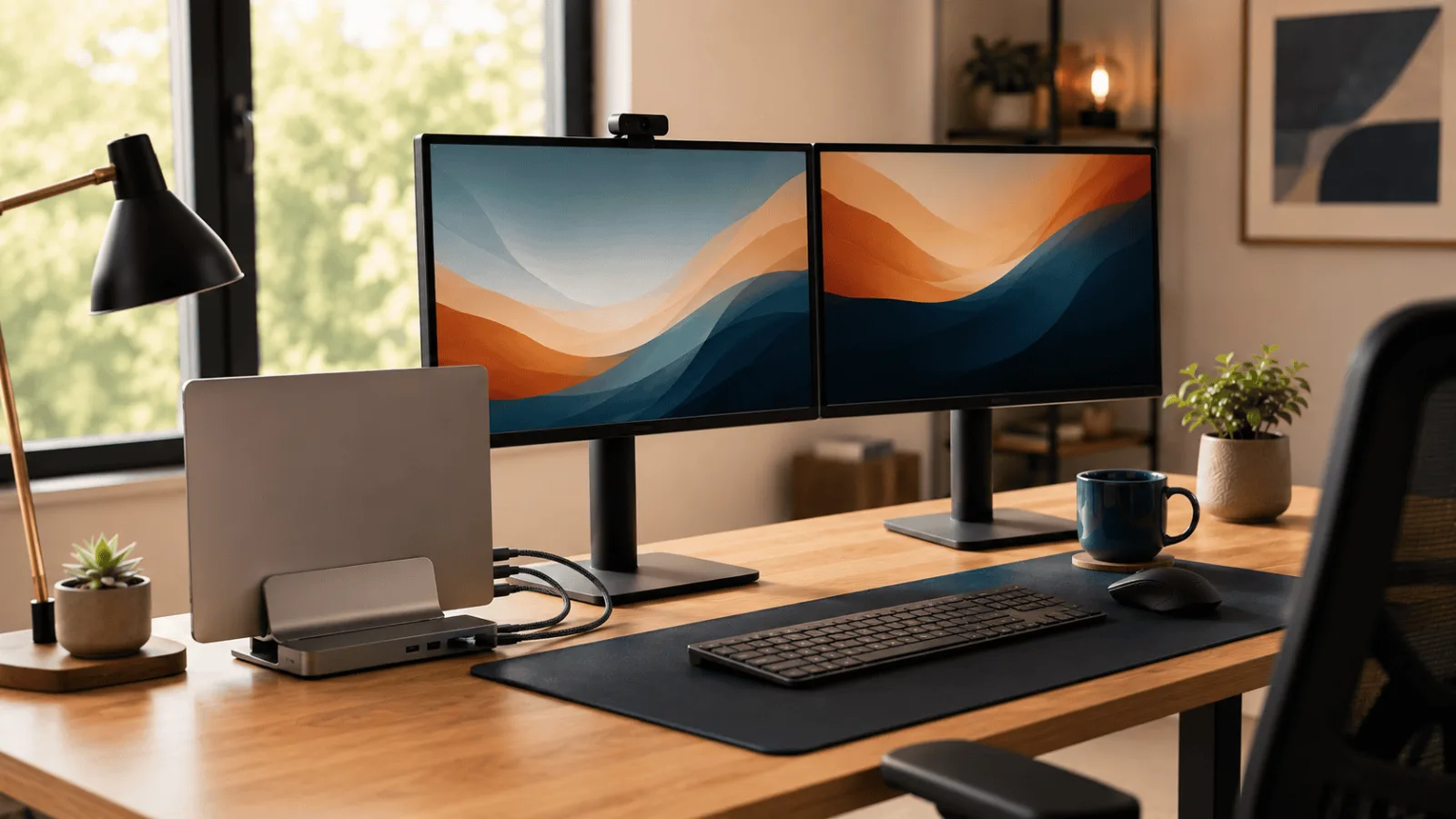
A smart home office setup is not about buying everything at once. It is about buying in the right order, because the upgrade that fixes your worst daily problem is worth more than four that fix nothing. I went through the review patterns across five categories to work out which piece of a smart home office setup earns its place first, which one most people buy too early, and where the real complaints show up after a few months.
Here is the thing about building a smart home office setup — it is rarely about any single product. It is about getting the right combination of connectivity, ergonomics, and accessories working together so your desk stops being a source of friction and starts being a place you actually want to sit at.
But when people search for a “smart home office setup,” what they usually mean is: I want one central thing that makes my whole desk smarter. Sometimes that is a docking station with a pile of ports. Sometimes it is a standing desk with a programmable controller. Sometimes it is the mesh router that finally kills the Wi-Fi dead zones. So yeah, this list covers all of it.
I went through hundreds of owner reviews across the categories that make up a smart home office setup to pull out the five products that consistently show up as the anchors of a high-functioning home desk in 2026. Here is what I found.
Anker 577 USB-C Docking Station
Thirteen ports, dual 4K display output, and 85W laptop charging — all from a single cable. Owner reviews consistently call this the most reliable single-purchase upgrade for a cluttered desk. It does not need Thunderbolt to get the job done for most hybrid workers.
Check Price on Amazon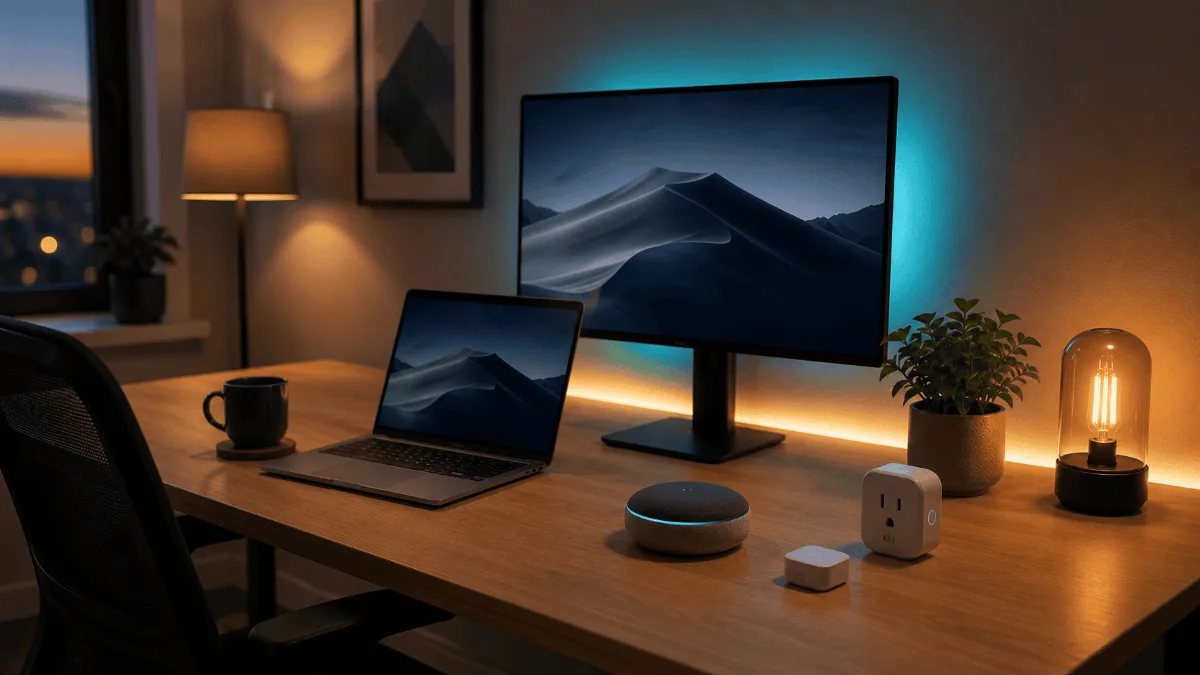
Quick Comparison
| Product | Best For | Standout Spec | Get It |
|---|---|---|---|
| Anker 577 USB-C Dock | Central connectivity hub | 13 ports, 85W PD, dual 4K | Check |
| FlexiSpot E6 MAX Standing Desk | Ergonomic desk upgrade | 275lb cap, dual motor, 4 presets | Check |
| Amazon Eero 6+ Mesh | Whole-home Wi-Fi backbone | WiFi 6, 4500 sq ft (3-pack) | Check |
| VIVO Dual Monitor Arm | Screen real estate upgrade | Fits 13–27in, C-clamp + grommet | Check |
| Logitech C920x HD Pro | Video call presence | 1080p/30fps, dual mic | Check |
The 5 Upgrades, in the Order I Would Buy Them
If a smart home office setup had to start with a single product, this is the one I keep coming back to. The Anker 577 is essentially the central nervous system of a modern desk — plug in one USB-C cable and you get 13 ports, dual 4K monitor support, and enough wattage to charge most laptops while you work.
Going through owner reviews, the word that comes up most often is “reliable.” People are not gushing about it the way they do about a fancy chair, but they are also not complaining. It just works. The dual 4K HDMI output is the headline feature for most buyers — running two external monitors off a single laptop connection is genuinely what makes a home desk feel like a full workstation.
The two things that keep surfacing in negative reviews: it does not support Thunderbolt (which matters if you are on a Mac with high bandwidth demands), and it does run warm during heavy use. Neither is a dealbreaker for the average hybrid worker, but worth knowing.
- 13 ports covers almost every peripheral without a splitter
- Dual 4K HDMI turns a laptop into a two-monitor workstation
- 85W power delivery charges most laptops simultaneously
- Consistently praised for day-to-day reliability in reviews
- No Thunderbolt support — limits bandwidth for some Mac workflows
- Unit gets noticeably warm under heavy load
A smart home office setup is not just about ports — it is about making your whole desk environment work as one system. The FlexiSpot E6 MAX is the standing desk that comes up most often when hybrid workers talk about the single upgrade that changed how they work at home. Four programmable height presets mean you are not manually dialing in your position every time you want to stand. You just tap a button.
The dual-motor system gets called out a lot in reviews as a reason to pick this over single-motor competitors. Owners report smoother, more even lifting even with heavier monitor setups loaded onto the surface. Anti-collision tech is also mentioned regularly — it stops the desk from driving into your chair or a stray cable if something gets in the way during adjustment.
Assembly time in reviews clusters around 30 to 45 minutes for one person, and the desk comes in at 72 pounds, so having a second set of hands available is worth planning for. Our full FlexiSpot E6 MAX review goes much deeper on the assembly and stability questions if you want the complete picture.
- Dual motor praised for smooth, wobble-free movement
- 275lb capacity handles heavy dual-monitor rigs comfortably
- 4 memory presets make sit-stand transitions effortless
- Anti-collision a genuine safety feature for real setups
- 72 lbs makes solo assembly awkward — two people strongly recommended
- 30 to 45 minutes assembly time is the most common report
No docking station or standing desk matters much if your Wi-Fi drops every time someone in the house starts a Netflix stream. The Eero 6+ is on this list because it consistently comes up as the “I should have done this years ago” purchase for home office workers with dead zones or inconsistent speeds.
What makes the Eero specifically appealing for hybrid workers is the setup experience. Reviews overwhelmingly describe it as the easiest mesh system to configure — the app walks you through placement and the whole thing is typically live in under 20 minutes. No IT background required. WiFi 6 support means it handles the bandwidth demands of video calls, large file transfers, and background cloud sync without the hiccups that older routers struggle with.
The main limitation that shows up in critical reviews: no WiFi 6E support, which matters if you have the latest devices that can take advantage of the 6GHz band. The app-based controls also get flagged as too basic for power users who want granular network settings. For most hybrid workers though, simpler is genuinely better here.
- Setup takes under 20 minutes in most reviews — no IT skills needed
- 4,500 sq ft of coverage eliminates dead zones in most homes
- WiFi 6 handles simultaneous video calls and file transfers smoothly
- App interface praised for being genuinely simple to manage
- No WiFi 6E — won’t future-proof for the very latest devices
- App controls too basic for users who want advanced network config
Turns out, a lot of people building a smart home office setup overlook the monitor situation entirely. Running dual screens on stock stands eats up a huge amount of desk surface and forces you into fixed positions that may not be right for your height. The VIVO dual arm fixes both of those problems for less than most people expect.
In reviews, the consistent praise is about how much desk space comes back after mounting. People describe clearing eight to ten inches of depth that the old stands were sitting on. The arm fits monitors between 13 and 27 inches and installs via a C-clamp (for solid desk edges) or a grommet hole — both options are included, which reviewers appreciate.
The most common complaint in early reviews is that the joints are stiff out of the box and need some use before they loosen up and move smoothly. A handful of reviews mention the design is purely functional — no premium aesthetic. Neither is a problem for most people, but worth knowing if you want something that doubles as a desk showpiece.
- Dramatically frees up desk surface compared to stock stands
- Both C-clamp and grommet hardware included in the box
- Fits 13–27in monitors, covers most standard setups
- Strong owner rating for a budget-tier dual arm
- Joints stiff initially — needs a few weeks of use to loosen
- Purely functional look — not a premium aesthetic product
No smart home office setup is complete without a webcam that makes you look like you are actually present in a meeting. The built-in camera on most laptops is genuinely bad — unflattering angle, soft image, tinny audio pickup. The C920x is the webcam that shows up in more “upgrade your home office” recommendation threads than anything else, and after reading through hundreds of owner reviews, the consistency of praise here is hard to argue with.
The key things owners keep mentioning: reliable 1080p output across different lighting conditions, a dual microphone setup that handles background noise reasonably well, and a plug-and-play experience with no driver installs on Windows or Mac. It works with every major video call platform. I could not find a pattern of complaints about compatibility in the review set, which at this point in the product’s life is telling.
The one gap that comes up is the lack of a physical privacy shutter. If that is important to your setup — and it is a fair concern — our best webcams for Zoom meetings breakdown covers several alternatives with shutters built in. For pure call quality at this level, though, the C920x is hard to beat.
- Plug-and-play with every major video call platform
- Consistent 1080p quality across varied lighting conditions
- Dual microphone handles background noise better than laptop mics
- Proven track record — years of strong owner reviews across platforms
- No built-in privacy shutter — notable gap for privacy-conscious buyers
How to Sequence a Smart Home Office Setup
The sequencing advice here is not just my opinion. OSHA’s computer workstation guidance puts the top of the screen at or slightly below eye level, and Mayo Clinic’s office ergonomics guide treats screen height and posture as the first thing to fix. That is why a monitor arm and a dock outrank a camera upgrade in almost every smart home office setup.
The idea of a “smart home office setup” is less about any single gadget and more about choosing a central organizer for your desk experience. Here are the five things I would think through before spending anything.
1. Start with connectivity, not accessories
A good docking station is the highest-leverage purchase in a smart home office setup. Getting all your peripherals — monitors, keyboard, webcam, storage — onto a single cable connection removes friction every single day. Get that right first before anything else.
2. Your network is your desk’s foundation
An unstable Wi-Fi connection undermines a smart home office setup completely. If you are working from a room that gets weak signal, no dock or standing desk will fix dropped Zoom calls. Mesh Wi-Fi belongs early in the priority list, not at the end.
3. Standing desk investment is long-term
A smart home office setup lives on its desk, and that market has a lot of budget options, but the quality gap between a dual-motor desk with anti-collision and a single-motor entry-level desk is real. Look at wobble reports at full extension — it is the number one complaint category in standing desk reviews, and it correlates directly with motor quality and frame construction.
4. Monitors and arms together, not separately
If your smart home office setup is gaining a second monitor, budget for a dual arm at the same time. The combination is what actually frees up desk space and lets you position both screens at proper ergonomic heights. Doing it in two separate purchases usually means suffering on stock stands for six months in between.
5. Webcam quality has a clear ceiling for calls
For standard video meetings, 1080p at 30fps is all you need. The jump to 4K is noticeable in studio conditions, but on a compressed video call over typical broadband, most platforms do not even deliver 1080p consistently. If you are curious about whether 4K is worth it for your workflow, our Logitech Brio 4K vs C920x comparison breaks it down side by side.
Frequently Asked Questions
Anker 577 USB-C Docking Station
The Anker 577 is the single purchase that will make the biggest immediate difference to a smart home office setup. Thirteen ports, dual 4K monitor output, and 85W charging from one cable is as close as you get to a universal “smart hub” for your desk in 2026. It has no Thunderbolt and runs a little warm, but for the vast majority of hybrid work setups, neither of those things will ever matter. Start here, then build out from it.
Get the Anker 577 on AmazonQuick Takeaways
- The Anker 577 dock is the best single purchase to tie a home desk together — 13 ports and dual 4K from one USB-C cable.
- The FlexiSpot E6 MAX is the standing desk pick for its dual motor, anti-collision, and 275lb capacity — worth the assembly effort.
- Mesh Wi-Fi is not optional for a smart home desk — the Eero 6+ covers most homes and sets up in under 20 minutes.
- A dual monitor arm like the VIVO recovers major desk surface and improves ergonomics — pair it with your second screen from day one.
- The Logitech C920x remains the most reliable 1080p webcam for calls — no privacy shutter, but unmatched plug-and-play reliability.
- Build your setup in priority order: connectivity first, then network stability, then ergonomics, then video presence.
Still building out the rest of your home office? A smart home office setup is just the start. Pair it with a solid ergonomic chair, a reliable webcam, and the right desk surface to get a setup that holds up through long hybrid workdays. Check out more of our top webcam picks for video calls to keep rounding out your workspace.