⚡ Anker 577 Docking Station Review — Quick Verdict
| ⭐ Rating | 4.6 / 5 — Best value Thunderbolt dock |
| 🏆 Best for | MacBook/Windows one-cable desk setup |
| 🖥️ Display support | Dual 4K@60Hz (Thunderbolt 4 required) |
| ⚡ Charging | 85W PD to host laptop |
Without a dock, most desks end up looking like a tech graveyard. Dongles everywhere, cables flopped across the keyboard, and a USB hub that gave up the ghost every time I plugged in more than three things at once. So when I finally caved and picked up the Anker 577, I was hoping it would clean things up. Spoiler: it mostly did.
Owners run this dock daily with a MacBook Pro, and often a Windows laptop alongside it when they swap machines. It’s sitting right next to my monitor stand, and it handles everything from dual displays to a webcam, external SSD, and phone charging all at once without breaking a sweat.
So yeah, let’s get into whether those 13 ports actually earn their keep, what the dock struggles with, and who this is really built for.
Anker 577 USB-C Docking Station (13-in-1)
The best all-around dock for hybrid workers who need dual 4K displays, fast charging, and a ton of ports — all without hunting for a Thunderbolt-specific hub.
Check Price on Amazon →First Impressions
The 577 shows up in a no-nonsense box with the dock, a USB-C cable, and a chunky power brick. The dock itself is pretty dense for its size — it’s got some weight to it, which actually makes it feel like quality rather than cheap plastic. The matte finish doesn’t collect fingerprints too badly either, which matters when it’s sitting right on your desk in plain sight.
Setup took me maybe five minutes. Plug the power brick into the wall, run the included USB-C cable to your laptop, and everything just… worked. Reviewers describe the same first-plug experience: both monitors fire up, keyboard and mouse connect through the USB-A ports, and the laptop starts charging. No driver installs, no fussing with display settings beyond what you’d normally do.
Anker 577 — dual 4K output One cable to the laptop, two screens live →In-Depth: Living With 13 Ports
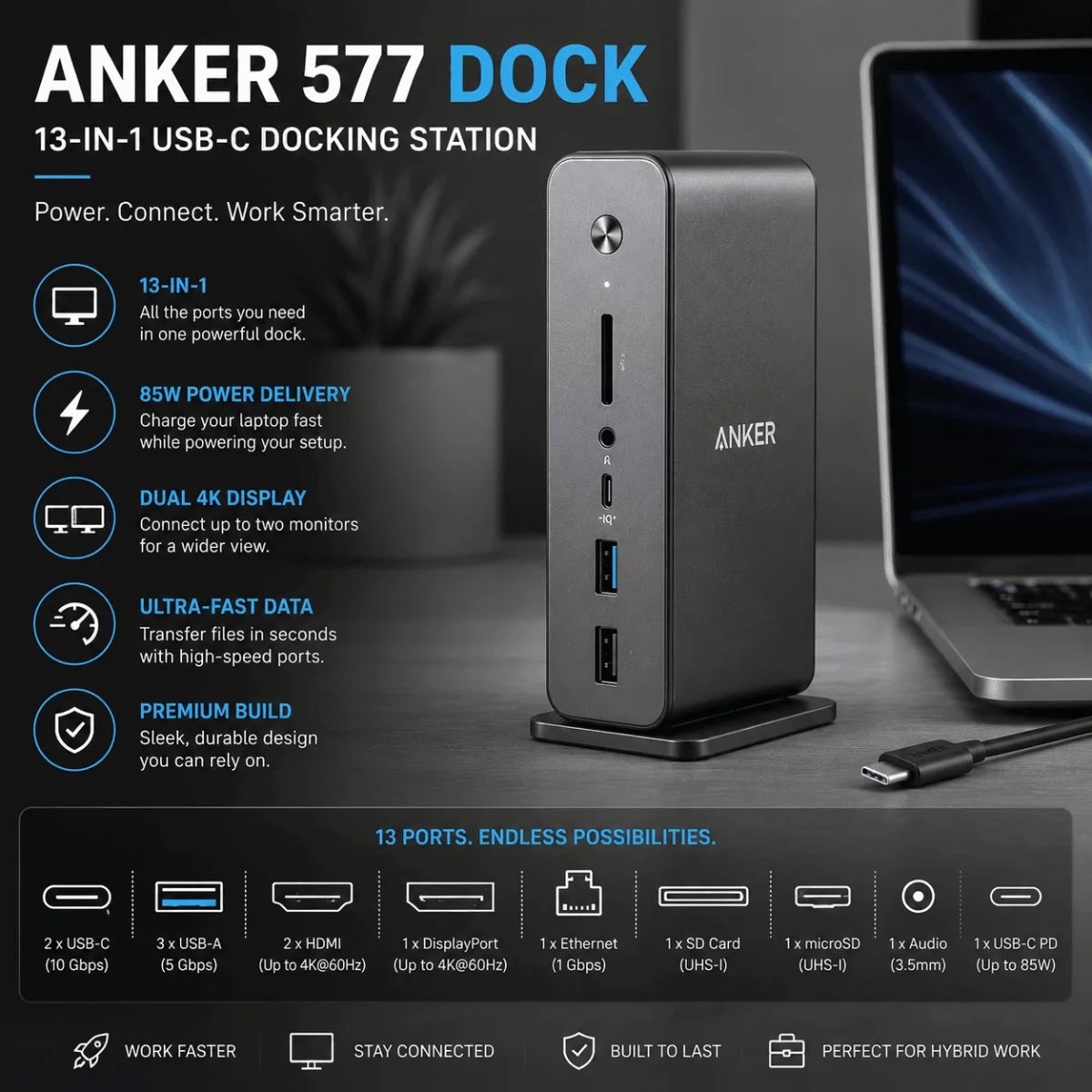
Here’s the thing about port count — it only matters if those ports are actually useful. The 577 gives you two HDMI 2.0 ports (both capable of 4K at 60Hz), three USB-A 3.1 ports on the back, two USB-A ports up front, a USB-C data port, SD and microSD card slots, a 3.5mm audio jack, and the main 85W USB-C power delivery port. That’s the full 13 right there.
In practice, my daily setup chews through most of them. Both HDMIs are running monitors, three USB-As handle my webcam, keyboard, and an external drive, and the front USB-A ports pull duty for phone charging and the occasional flash drive. The SD card slot has been a quiet hero — I shoot on a mirrorless camera and not having to dig for a card reader every time is genuinely nice.
The 85W power delivery keeps my 14-inch MacBook Pro charged during normal work sessions without issue. Under heavy load — like running a video export while Teams is open with both screens going — the laptop battery might tick down a tiny bit, but it’s not something you’d notice day to day. If you’re on a laptop that needs 100W or more, just know this dock won’t fully keep up under peak demand.
Dual 4K at 60Hz on both monitors is the headline feature, and it delivers. I’m running a 4K LG on one HDMI and a 1440p on the other, and both look crisp with no stutter or signal dropouts in four months of use. Worth noting: this is USB-C DisplayAlt mode, not Thunderbolt — so if your workflow demands Thunderbolt-specific bandwidth (like daisy-chaining or TB peripherals), the 577 isn’t your dock. But for most hybrid workers? You’ll never feel the difference.
One thing that took some adjusting: the power brick is large. It’s not going to sit behind your dock invisibly — you need to plan for it. I’ve got mine tucked under the desk next to my standing desk’s cable management tray, which helped a lot. If you’re tight on space or running a very minimal setup, the brick bulk is worth factoring in.
Heat is manageable. After a full workday the dock gets warm to the touch but never hot enough to worry about. No thermal throttling noticed, no weird USB dropouts that some cheaper hubs pull. It just stays on and stays stable, which sounds basic but isn’t always guaranteed with budget alternatives.
- Dual 4K HDMI actually works at 60Hz on both outputs simultaneously
- 85W power delivery keeps most laptops topped up through the day
- 13 ports covers virtually every daily peripheral without a secondary hub
- SD and microSD slots are a quiet but consistent win
- Rock solid stability — no random disconnects after months of use
- Plug-and-play on both Mac and Windows, no driver drama
- No Thunderbolt support — limits high-bandwidth peripheral use
- Power brick is bulky and needs its own cable management plan
- Won’t fully charge laptops that require over 100W under peak load
- No built-in ethernet port (you’ll need an adapter for wired network)
Who Should Buy This
This dock was basically made for the hybrid worker who has a MacBook or modern Windows laptop, runs dual monitors, and wants one cable to connect everything when they sit down. If that’s your setup, the 577 is about as complete a solution as you’ll find in this price range. Content creators who shoot on cameras will also appreciate the card reader slots.
It pairs really well with a clean desk setup — I’ve got mine sitting next to a Logitech C920x on a monitor mount, and the webcam USB cable just snakes straight into the back of the dock. Everything feeds into one cable to the laptop. That single-cable-to-desk life is genuinely worth it once you’ve had it.
Who Should Skip This
If you need Thunderbolt 4 for something specific — like connecting a Thunderbolt RAID array or TB display — you’ll want to look at the Anker 777 or a Caldigit TS4 instead (both cost significantly more). Also skip this if your laptop charges at over 100W and you’re doing GPU-heavy work; the 85W PD will feel limiting under serious sustained load.
What to Look For in a Docking Station
Shopping for a dock can get confusing fast, so here’s what actually matters when you’re comparing options.
Power Delivery wattage. This is how many watts the dock can send back to your laptop while it’s connected. Most ultrabooks are fine with 60-85W. But if you’ve got a 16-inch MacBook Pro or a power-hungry Windows workstation laptop, you’ll want 100W or more. Check your laptop’s original charger wattage and match accordingly.
Display output type and resolution. HDMI 2.0 handles 4K at 60Hz, which is the sweet spot for most people. DisplayPort is another option and tends to be slightly better for high refresh rate monitors. If you’re running a single display setup, almost any dock will do. Dual 4K simultaneously narrows your options more than you’d think.
USB-C vs Thunderbolt. Thunderbolt 4 docks offer more bandwidth and support daisy-chaining, but they cost significantly more — often double. Unless you have specific Thunderbolt peripherals or need TB speeds for an external GPU, a quality USB-C dock like the 577 will feel identical in everyday use.
Port mix vs port count. A dock with 13 ports sounds better than one with 8, but look at what those ports actually are. You want a mix of USB-A (for legacy peripherals), USB-C data ports, and ideally card reader slots if you work with cameras. Pure numbers can be misleading if half the ports are things you’d never use.
Build quality and thermal management. Cheap hubs run hot and drop connections. A well-built dock with proper thermal design will run warm but stable all day. If you see a lot of reviews mentioning random disconnects, that’s a red flag worth taking seriously.
Anker 577 USB-C Docking Station
For hybrid workers who want to go from bag-to-desk in one cable connection, run dual 4K monitors, charge their laptop, and handle all their peripherals without a USB hub forest on their desk — the 577 is the dock to get. It’s priced in the around the mid-range bracket range, which is fair for what it actually delivers day after day.
View on Amazon →Quick Takeaways
- The Anker 577 offers 13 ports including dual 4K HDMI and 85W power delivery — enough for most hybrid work setups.
- It’s a USB-C dock, not Thunderbolt — that’s fine for 90% of users but rules it out for TB-specific workflows.
- Dual 4K at 60Hz on both outputs actually works, as long as your laptop supports DisplayPort Alt Mode.
- The power brick is bigger than expected — plan your cable management before it arrives.
- No built-in ethernet is the one meaningful gap — grab a USB-to-ethernet adapter if you need wired network.
- Build quality and connection stability hold up in owner reports months into daily use.
- Best suited for MacBook users (M3 Pro/Max for dual display), Windows laptop users, and anyone escaping dongle chaos.
Frequently Asked Questions
Is the Anker 577 docking station worth it?
Yes, for MacBook and Windows laptop users who want a single-cable desk setup. It connects up to 13 peripherals through one Thunderbolt 4 cable, supports dual 4K displays at 60Hz, provides 85W PD charging, and includes 10Gbps USB-A and USB-C ports. At it’s significantly cheaper than the CalDigit TS4 while covering most user needs.
Does the Anker 577 work with Windows laptops?
Yes — the Anker 577 is compatible with any laptop with a Thunderbolt 4 or USB4 port, including Windows laptops from Dell (XPS, Latitude), Lenovo (ThinkPad), HP (Elite/Spectre), and ASUS. USB-C laptops without Thunderbolt 4 can also use it but may not get full bandwidth — dual 4K display support requires Thunderbolt 4 on the host device.
What is the maximum display resolution supported by the Anker 577?
The Anker 577 supports dual 4K displays at 60Hz (two HDMI 2.1 ports) or one 8K display at 30Hz via the Thunderbolt upstream connection. For most home office use with 1080p or 1440p monitors, maximum display resolution is rarely a limitation. The 4K@60Hz dual-display support covers the vast majority of creative and productivity use cases.
Does the Anker 577 make my laptop run hot?
Thunderbolt 4 docks can cause minor additional heat in the laptop’s chip due to increased I/O activity when driving multiple high-resolution displays and transferring data simultaneously. In practice, normal productivity use (documents, browser, video calls) with a dual-display setup does not significantly increase laptop temperatures. Video editors running sustained GPU workloads through the dock may notice thermal throttling on thinner laptops.
📚 Related Articles
Anker 577 USB-C Dock is the pick most readers here land on. Stock and deals shift often, so it is worth checking what it is going for right now.
See Current Price →Not sure what to buy first? We broke down how to sequence a smart home office setup — which upgrade fixes the biggest daily problem, and the one most people buy far too early.