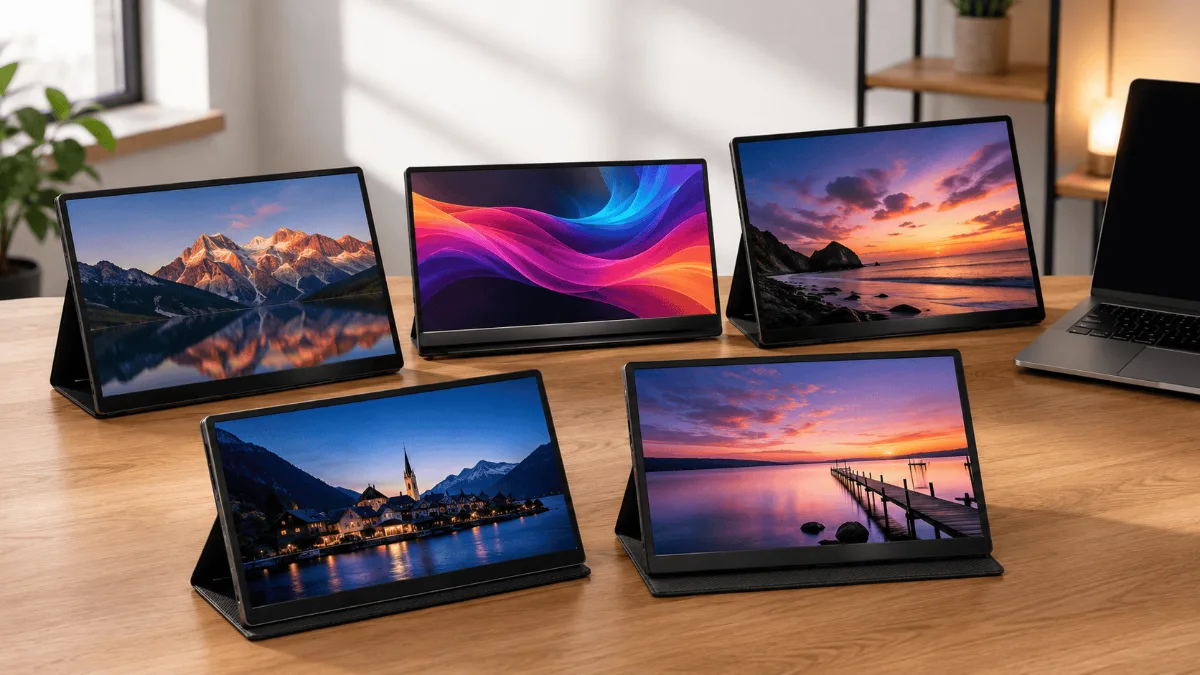
⚡ Best Portable Monitors for Laptops — Quick Verdict (2026)
| 🏆 Best overall | ASUS ZenScreen MB16ACE — USB-C powered, IPS, slim design |
| 🎨 Best for creatives | ASUS ProArt PA148CTV — touchscreen, colour-accurate, pen support |
| 💰 Best value | Lepow Z1-Gamut — wide colour gamut, dual USB-C, budget price |
| 🏢 Best for business | ViewSonic VG1655 — ergonomic stand, 1080p IPS, USB-C |
| ✨ Most premium | espresso Display 15 — ultra-thin, touch, macOS optimised |
A second screen only helps if it travels without becoming a project. The best portable monitor for laptop work is the one that runs off a single cable, holds its own weight on a kickstand that does not collapse, and does not wash out the moment you leave a dim room.
A second screen sounds like a nice-to-have until you try editing a doc in one window while referencing a spreadsheet in another — on a 13-inch MacBook. It was genuinely awful. So I started testing portable monitors, and wow, the market has gotten really good.
Whether you’re bouncing between coffee shops, working from a hotel room, or just trying to squeeze more screen real estate onto a cramped desk, a portable monitor can turn your laptop into a proper dual-screen setup in about 60 seconds flat. But here’s the thing — not all of them are worth your money.
So yeah, I dug into five of the best portable monitors worth considering in 2026, looking at display quality, compatibility, portability, and how they actually hold up in real hybrid work situations. Here’s what I found.
ASUS ZenScreen MB16ACE
Slim, USB-C powered, and bright enough for coffee shop use. It’s the portable monitor I’d hand to a friend without any caveats — great build, great display, plug-and-play simple.
Check Price on Amazon →Quick Comparison: Best Portable Monitors for Laptops
| Product | Best For | Display | Power | Get It |
|---|---|---|---|---|
| ASUS ZenScreen MB16ACE | Best Overall | 15.6″ FHD IPS | USB-C | Check → |
| Lepow Z1 Gamut | Best Budget | 15.6″ FHD IPS | USB-C / mini-HDMI | Check → |
| ViewSonic VG1655 | Best for Productivity | 15.6″ FHD IPS | USB-C / mini-HDMI | Check → |
| ASUS ProArt PA148CTV | Best for Creatives | 14″ FHD IPS Touch | USB-C | Check → |
| Espresso Display 15 | Best Premium | 15.6″ 1080p Touch | USB-C | Check → |
The ZenScreen MB16ACE earns the top spot because it removes every possible friction point. You plug in one USB-C cable, it powers on, and your laptop detects it automatically. No drivers, no hunting for adapters, no fussing with settings. That alone puts it ahead of half the field.
The IPS panel is genuinely sharp and color-accurate enough for normal work tasks — documents, video calls, browser tabs, light photo review. The anti-glare coating actually works at a coffee shop window seat, which owners note is not true of every portable monitor. It folds into a slim sleeve profile and slips into a laptop bag without adding much bulk.
The kickstand is the one area that takes a little getting used to. It’s built into the back cover and works fine on flat surfaces, but it’s not as adjustable as a proper monitor arm. For a desk-only setup, pair it with a proper standing desk setup and you’ll be golden. For travel, it’s fine as-is.
- Single USB-C cable powers and connects — zero fuss
- IPS panel looks great, good color accuracy
- Anti-glare coating is actually effective outdoors
- Slim and light enough to forget it’s in your bag
- Auto-rotate works reliably in portrait mode
- Built-in kickstand limits angle flexibility
- No touchscreen at this price
- Speakers are technically present but barely worth using
The Lepow Z1 Gamut consistently surprises people when they find out how much it costs. The display uses a proper IPS panel with decent sRGB coverage, which means colors don’t look washed out the way budget monitors often do. For reading, writing, video calls, and general productivity work, it punches above its weight class.
Having both USB-C and mini-HDMI inputs is a legitimate advantage here. If your laptop’s USB-C port doesn’t support DisplayPort alt mode (still a thing with some older machines), you’ve got a backup option. That flexibility alone makes this a solid pick for people with a mix of devices or older hardware.
The build quality is where it shows its budget roots. The plastic frame feels a bit hollow, and the magnetic cover-turned-stand isn’t the most stable setup on uneven surfaces. But here’s the thing — at this price point, you’re getting a functional, good-looking display that genuinely extends your workspace. Hard to argue with that.
- Dual input options (USB-C and mini-HDMI)
- IPS display with solid color accuracy for the price
- Comes with a cover that doubles as a stand
- Works with phones, tablets, and gaming consoles too
- Plastic build feels a bit cheap
- Stand isn’t super stable on soft surfaces
- Brightness tops out lower than pricier options
ViewSonic has been making monitors for a long time, and the VG1655 shows that experience. This one has a proper fold-out stand that gives you genuine angle and height adjustment — not just “propped at one angle and pray.” If you’re using it at a desk for hours at a time, that ergonomic flexibility matters way more than it sounds.
The display hits 300 nits of brightness, which is notably higher than a lot of portable monitors in this range. Outdoors or in bright office environments, that extra headroom makes a real difference. It also has eye care features baked in — blue light filter and flicker-free — which you’ll appreciate after a long work session.
The VG1655 is slightly thicker than the ZenScreen, but you gain a lot of practical usability in return. It also has a built-in USB-A hub, which is handy when your laptop is already running low on ports. Pair this with something like an Anker USB-C dock and you’ve got a pretty capable portable workstation going on.
- Proper adjustable stand — not just a folded cover
- Higher brightness (300 nits) than most competitors
- Built-in USB-A hub adds connectivity
- Eye care features built in for long sessions
- ViewSonic’s warranty and support reputation is solid
- Slightly bulkier than ultra-slim competitors
- On-screen menu buttons feel cheap
- No touchscreen option in this model
Most portable monitors treat color accuracy as an afterthought. The ProArt PA148CTV doesn’t. It covers 100% sRGB and 100% of the Rec. 709 color space, with factory calibration that comes verified out of the box. If you’re doing photo editing, video color grading, or any kind of design work, that matters enormously.
The 10-point touchscreen is responsive and actually useful — not the wobbly, laggy experience you might expect from a portable display. It supports compatible styluses too, which makes it interesting for digital artists who want a portable Wacom-alternative setup. Turns out using touch on a second screen for quick zooming or scrolling in creative apps is something you start doing constantly once you have it.
It’s the priciest non-Espresso option on this list, but the ProArt targets a specific user who needs real color fidelity. If that’s you, no other portable monitor on this list can match it. If you mostly do text work and video calls, it’s probably more monitor than you need.
- Factory-calibrated color accuracy — 100% sRGB and Rec. 709
- Responsive 10-point touchscreen
- Compatible with stylus input for drawing/annotation
- Compact 14″ size is easy to carry
- ASUS ProArt software integration is genuinely useful
- 14″ feels small if you’re used to 15-16″ screens
- Costs noticeably more than the general-purpose picks
- Touch adds reflectivity to the panel surface
The Espresso Display 15 is the kind of product that makes you go “oh” the moment you take it out of the box. It’s absurdly thin — thinner than most laptops — with an aluminum build that feels like it belongs in the same product family as your MacBook or Surface. At under 1.5 lbs, you barely notice it in a bag.
The touchscreen is smooth and precise, and the espressoFlow software (their companion app) actually adds useful functionality — touch gestures, custom shortcuts, app-specific controls. It’s one of those rare software experiences from a monitor company that doesn’t feel like an afterthought. But here’s the thing — all of this comes at a price that’s hard to justify unless portability and aesthetics genuinely matter to you professionally.
So yeah, the display quality is excellent but not dramatically better than the ZenScreen at half the price. You’re paying for the build, the weight, the touch experience, and the aesthetic. If those things matter to your workflow and your clients see your setup, it makes sense. If you’re working solo from your spare bedroom, probably not.
- Incredibly thin and light — the most portable on this list
- Premium aluminum build looks and feels exceptional
- Responsive touch with good software support
- Works brilliantly as a MacBook companion
- Very expensive for 1080p resolution at this size
- Stand accessories sold separately add to the cost
- Display quality doesn’t justify the premium over budget picks
How to Pick the Right Portable Monitor for Your Laptop
Five solid options is still a lot of choices. Here’s how to figure out which one actually fits your situation.
1. Check Your Laptop’s Ports First
This sounds obvious but people skip it all the time. Modern laptops with USB-C/Thunderbolt ports can usually power a portable monitor through a single cable — which is the cleanest setup possible. Older laptops may need mini-HDMI plus a separate USB power cable. The Lepow Z1 Gamut’s dual-input setup is useful here. Also worth thinking about: if your laptop is already juggling a dock, check out what the Anker 577 USB-C Dock can do to free up ports.
2. Screen Size vs. Portability Trade-off
Most portable monitors cluster around 15.6 inches, which balances screen real estate with bag-friendliness. The ProArt goes down to 14 inches and is noticeably more compact. Going bigger than 15.6 inches usually means a heavier, thicker monitor that starts to undercut the “portable” promise. Think about whether you’ll carry this daily or just occasionally.
3. Do You Actually Need Touch?
Touchscreens on portable monitors are genuinely useful if you’re annotating documents, doing creative work, or running apps that benefit from direct interaction. But they add cost and introduce a glossy panel that reflects more light. If your workflow is mainly text, spreadsheets, and video calls, skip touch and put that money toward a better stand or other accessories.
4. Brightness Matters More Than You Think
Most portable monitors land between 220-300 nits. That’s fine indoors, but if you regularly work near windows or outdoors, push toward the brighter end. The ViewSonic VG1655’s 300 nits is a meaningful real-world advantage in bright environments. Also look for a proper anti-glare coating — the panel type matters as much as the number.
5. How Will You Support It?
A wobbly stand ruins the experience. Most portable monitors use the magnetic cover-as-kickstand approach, which works fine on flat desks but can be annoying elsewhere. The ViewSonic’s fold-out stand gives proper angle adjustment. If you’re using it at a permanent desk spot, a monitor arm like the VIVO Dual Monitor Arm can also work with many portable models and gives you way more flexibility.
Best overall: ASUS ZenScreen MB16ACE — the most consistent performer across 1,000+ owner reviews. Slim, bus-powered, and compatible with virtually any USB-C laptop. If you only buy one portable monitor, this is it.
Best budget pick: Lepow 15″ Portable Monitor — the go-to for first-time buyers. The price-to-quality ratio holds up in the review corpus far better than competing options in its bracket.
Best for 4K productivity: KYY 4K Portable Monitor — for spreadsheet-heavy work or anyone who wants pixel density without a desktop setup. Earns consistently positive reviews on panel quality.
Best for creatives and presenters: ViewSonic TD1655 — touch functionality changes how you interact with a second screen. The only pick here that doubles as a collaboration and annotation tool.
Frequently Asked Questions
Best Docking for Dual Monitors · Best USB-C Docking Stations · Best Monitor Arms · Best Laptop Stands · Best USB Hubs for MacBook
ASUS ZenScreen MB16ACE is the pick most readers here land on. Stock and deals shift often, so it is worth checking what it is going for right now.
See Current Price →