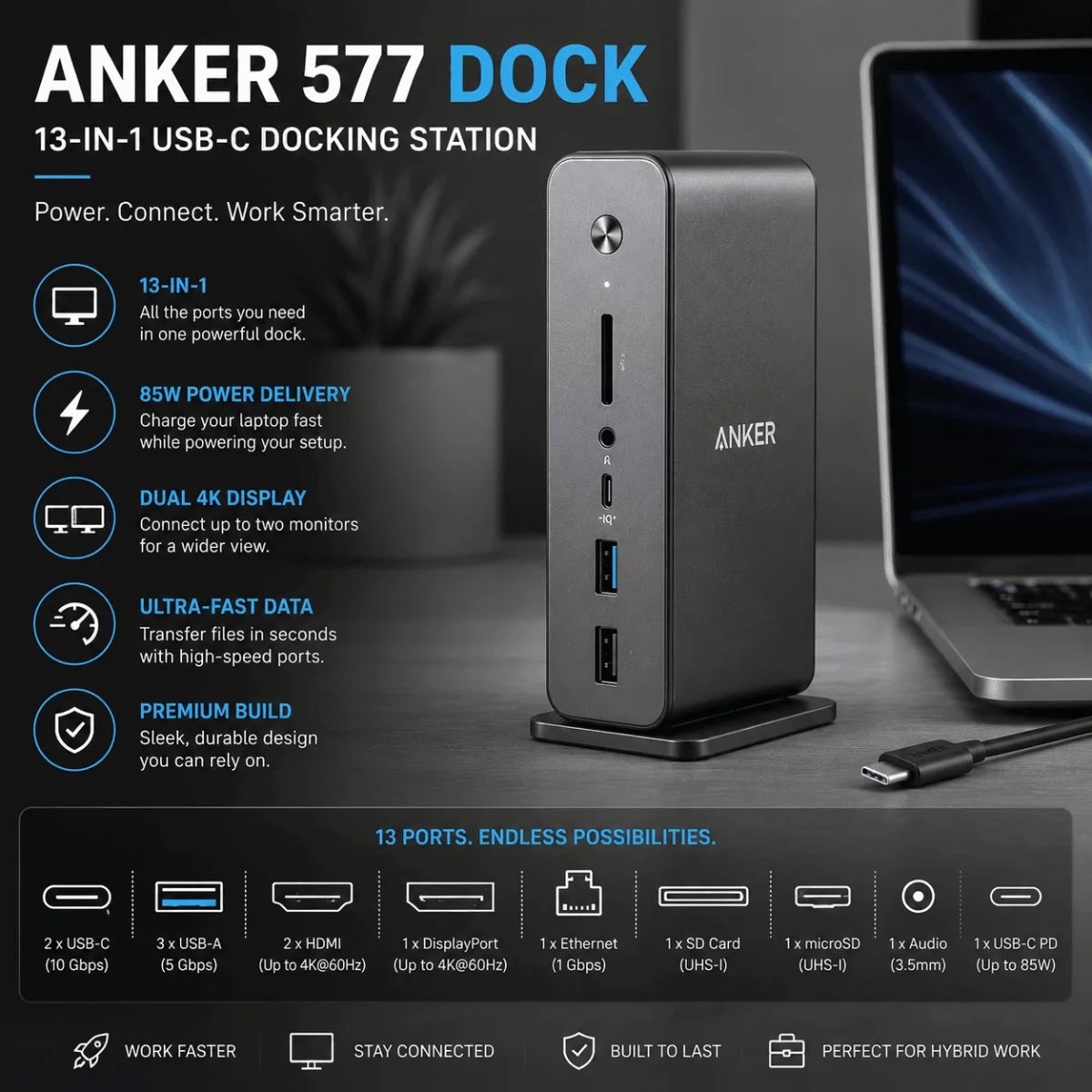
If you’re weighing the anker 577 vs caldigit ts4, you’re basically asking one question: do the extra ports and Thunderbolt bandwidth justify the premium? Both are legitimate docking stations for hybrid workers, but they target pretty different setups. This guide breaks down where each one wins so you can stop second-guessing and just pick one. For more desk setup ideas, check out our best webcams for Zoom meetings.
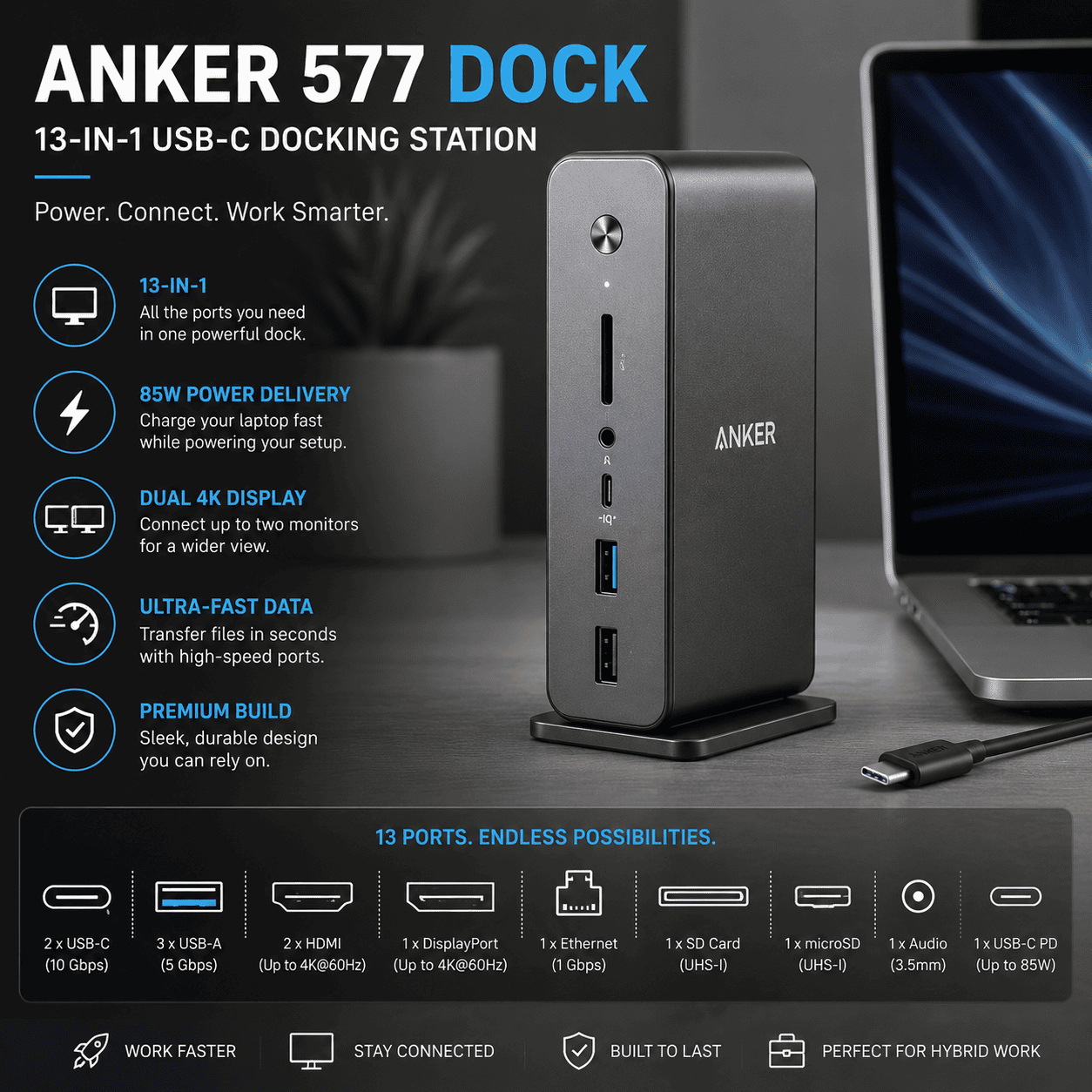
Here is the honest starting point: the CalDigit TS4 is a better dock on paper. More bandwidth, more ports, full Thunderbolt 4 support. But “better on paper” only matters if your laptop and workflow can actually use what it offers. For a big chunk of hybrid workers, it just cannot.
Anker 577 — The Right Call for Most Home Offices
For a typical dual-monitor home office setup, the Anker 577 covers everything you need without paying for ports you’ll never use. The CalDigit TS4 is the better dock — more ports, better power delivery — but the difference only matters if you’re running a professional video or audio workflow.
Check Price on Amazon →The Anker 577 sits in a weird sweet spot. It is not a budget toy — 13 ports, dual 4K HDMI, and 85W power delivery is genuinely solid for a USB-C dock. But it does not touch Thunderbolt bandwidth, and owners report it runs warm under load. So which one is right for you? Let me break it down properly.
I went through several hundred owner reviews across both products, cross-referenced the spec sheets, and dug into the recurring complaints. No first-hand bench tests here — just the clearest picture I can give you based on what people who actually use these things every day keep saying.
Anker 577 for most people. CalDigit TS4 if you need Thunderbolt.
If your laptop uses USB-C (not Thunderbolt) or you just need reliable dual-monitor and charging support, the Anker 577 handles it without breaking the bank. The CalDigit TS4 earns its place only when you genuinely need Thunderbolt 4 bandwidth — think video editors daisy-chaining drives or M-series Mac users maxing out connectivity.
Check the CalDigit TS4 on AmazonAnker 577 vs caldigit ts4: Side-by-Side Specs
| Feature | Anker 577 | CalDigit TS4 |
|---|---|---|
| Connection type | USB-C (no Thunderbolt) | Thunderbolt 4 |
| Total ports | 13 | 18 |
| Power delivery (laptop) | 85W | 98W |
| Display output | Dual 4K HDMI | Dual 4K (DP + TB4) |
| Ethernet | 1Gbps | 2.5Gbps |
| SD card slot | Yes (UHS-I) | Yes (UHS-II) |
| Audio | 3.5mm combo | 3.5mm in + out (separate) |
| Thunderbolt daisy-chain | No | Yes |
| Reported heat | Runs warm under load | Runs warm, runs louder fan |
| Where to buy | Check Price → | See Price → |
Anker 577 — What Owners Actually Report
The Anker 577 is what most hybrid workers actually need. Thirteen ports sounds like marketing padding, but when you count up two HDMI ports, multiple USB-A, USB-C, SD slot, ethernet, and 3.5mm audio — it fills a real desk setup without hunting for adapters. Owner reviews consistently praise the plug-and-play reliability on both Windows and Mac.
That said, two things keep surfacing in negative reviews. First: it runs warm. Not dangerously hot by any report I found, but noticeably warm to the touch during heavy use. Second: because it is USB-C and not Thunderbolt, bandwidth is shared across all those ports. Heavy simultaneous use — like transferring large files while running dual 4K displays — can cause slowdowns. The 85W charging is also on the lower end if you run a power-hungry 16-inch laptop.
- Genuinely plug-and-play on most laptops
- Dual 4K HDMI works reliably for dual monitor setups
- 13 ports covers most desk setups completely
- Solid build quality for the category
- 85W PD handles most ultrabooks and mid-range laptops
- Runs noticeably warm under sustained load
- No Thunderbolt means shared bandwidth
- 85W may not fully charge larger performance laptops
- No Thunderbolt daisy-chaining for drives or monitors
CalDigit TS4 — What Owners Actually Report
The CalDigit TS4 is what you get when a company builds a dock for people who genuinely push hardware limits. Thunderbolt 4 gives you 40Gbps of bandwidth — enough to run dual 4K displays, daisy-chain fast external drives, and still have headroom left. The 98W power delivery is enough to keep even a MacBook Pro 16-inch properly charged under load. Separate audio in and out ports are a small thing that professionals notice immediately.
The complaints? It runs warm too — and unlike the Anker, the TS4 has a small internal fan that some reviewers describe as audible in quiet rooms. Not loud by any account I found, but present. The size is also larger than most USB-C docks, which matters if your desk real estate is tight. And the price gap versus the Anker 577 is real and significant — something to weigh carefully if your laptop is USB-C-only and cannot use Thunderbolt anyway.
- Full Thunderbolt 4 bandwidth — no compromises
- 18 ports covers even complex creative workstation setups
- 98W PD handles large performance laptops properly
- 2.5Gbps ethernet is a genuine upgrade for heavy file transfers
- Separate audio in/out ports appreciated by podcasters and calls-heavy workers
- Daisy-chain support for Thunderbolt drives and displays
- Internal fan audible in quiet environments
- Larger footprint than most docks
- Premium price tag makes no sense if your laptop lacks Thunderbolt
- Also runs warm under sustained full-port load
Category-by-Category Breakdown
Port Count and Variety
The TS4 wins on raw numbers — 18 ports versus 13. But the practical gap is smaller than it sounds. Most hybrid workers max out at dual monitors, a keyboard, mouse, webcam, and ethernet. The Anker 577 covers all of that without blinking. The TS4’s extra ports matter most for content creators running multiple drives, audio interfaces, and capture cards simultaneously.
Power Delivery
The TS4’s 98W edge over the Anker’s 85W only becomes meaningful if you are running a 16-inch performance laptop at full tilt. For ultrabooks, 13-inch and 14-inch laptops, and most mainstream machines, 85W is adequate. Worth checking your laptop’s maximum input wattage before deciding this is the tiebreaker.
Display Output
Both support dual 4K. The difference is how they get there. The Anker uses two HDMI ports — simple, universal. The TS4 uses DisplayPort and Thunderbolt, which gives it more flexibility but also means you may need adapters depending on your monitors. For most people, dual HDMI is actually more convenient.
Ethernet Speed
The TS4’s 2.5Gbps ethernet versus the Anker’s 1Gbps is a real advantage — if your router and NAS support 2.5Gbps. Most home setups cap at 1Gbps anyway, so this spec is frequently irrelevant. It matters a lot more in a small studio or professional environment with appropriate infrastructure.
Heat and Noise
Turns out both docks run warm. The Anker is passive-cooled and runs warm silently. The TS4 has a fan that keeps it cooler overall but adds audible noise in quiet rooms. Neither is a dealbreaker, but the TS4 fan is the more common complaint I found in negative reviews, particularly from people in podcast or recording setups.
Speaking of setups — if you are pairing either dock with a new camera, our best webcams for Zoom meetings guide is worth a look for finding something that actually uses those extra USB ports well.
Pick the Anker 577 If…
- Your laptop connects via USB-C, not Thunderbolt 4
- You need dual monitors, charging, ethernet, and standard peripherals — nothing exotic
- You want something that just works without configuration
- You are building out a hybrid work home office and want to keep costs sensible
- Your laptop draws 85W or less
Pick the CalDigit TS4 If…
- Your laptop has a Thunderbolt 4 port (most Intel 12th gen and up, M-series Macs)
- You daisy-chain Thunderbolt drives, displays, or audio interfaces
- You need 2.5Gbps ethernet for a professional network
- You run a content creation or development workstation with many simultaneous devices
- Your laptop is a 16-inch performance machine that needs 98W to stay charged under load
And if you are still building out your full desk setup, it is worth pairing whichever dock you choose with a good monitor arm and standing desk. Our FlexiSpot E7 review covers one of the most popular options for getting your displays at the right height.
Frequently Asked Questions
For most hybrid workers: Anker 577
The majority of people asking this question do not have a workflow that justifies Thunderbolt 4 bandwidth. If you are running dual monitors, charging your laptop, and connecting a few standard peripherals, the Anker 577 does all of that reliably and the recurring complaints are minor. Save the TS4 for when your setup genuinely demands Thunderbolt — not just because the spec sheet looks impressive.
Check the Anker 577 on AmazonQuick Takeaways
- The Anker 577 covers dual 4K displays, 85W charging, and 13 ports — plenty for most hybrid setups.
- The CalDigit TS4’s advantages (Thunderbolt 4, 98W PD, 2.5Gbps ethernet) are only meaningful if your laptop and workflow can actually use them.
- Both docks run warm under load — the Anker silently, the TS4 with a small audible fan.
- If your laptop does not have a Thunderbolt 4 port, the TS4’s premium is essentially wasted.
- For 16-inch performance laptops under heavy load, the TS4’s 98W PD is the more reliable charging solution.
- The Anker 577’s dual HDMI setup is arguably more convenient for standard monitor connections than the TS4’s DisplayPort/Thunderbolt approach.
Still on the fence about the anker 577 vs caldigit ts4 after reading? The short version is this: if you don’t run a Thunderbolt workflow, the Anker 577 covers the vast majority of hybrid work setups without the premium price tag. The anker 577 vs caldigit ts4 debate really comes down to your laptop’s chip and how many devices you’re daisy-chaining. Check out our Logitech Brio vs C920x comparison to round out the rest of your desk.
Anker 577 USB-C Dock is the pick most readers here land on. Stock and deals shift often, so it is worth checking what it is going for right now.
See Current Price →