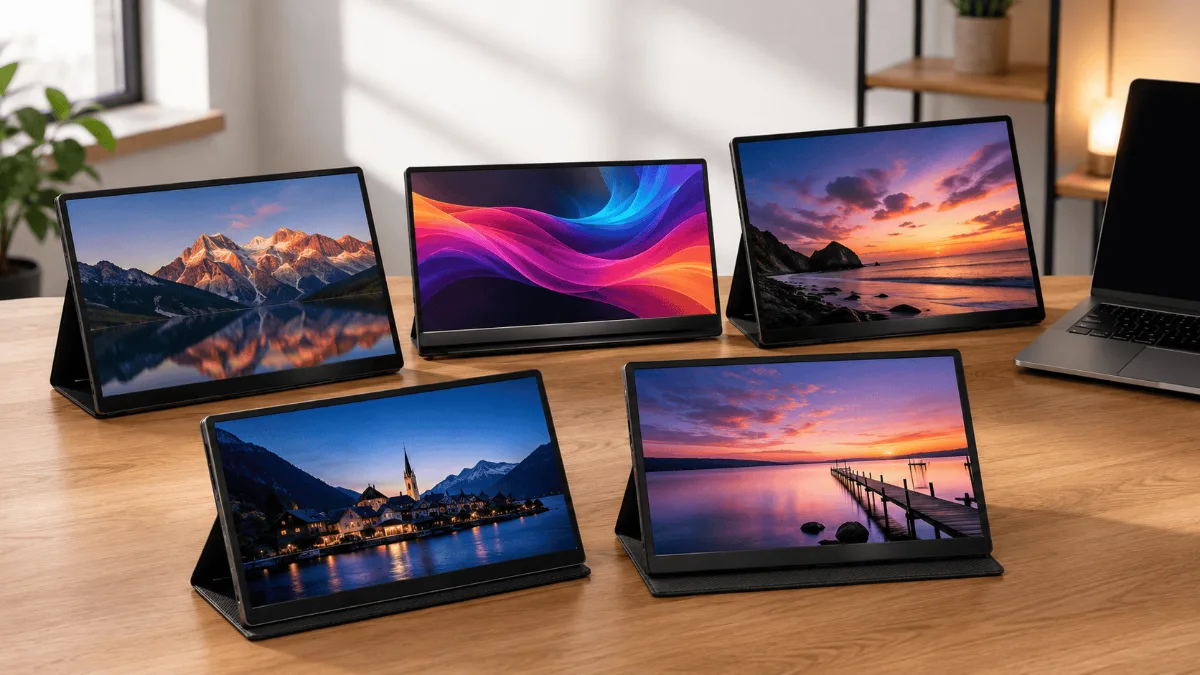
Finding the best monitor for your home office means looking past resolution — eye-comfort tech, USB-C charging, and panel type separate genuinely useful screens from spec-sheet winners. Finding the best monitor for home office work means looking past the spec sheet. I went through hundreds of reviews from hybrid and remote workers and the same issue surfaced repeatedly: people bought on resolution and regretted skipping USB-C charging. This guide covers the best home office monitors available in 2026, ranked by what actually affects your day.
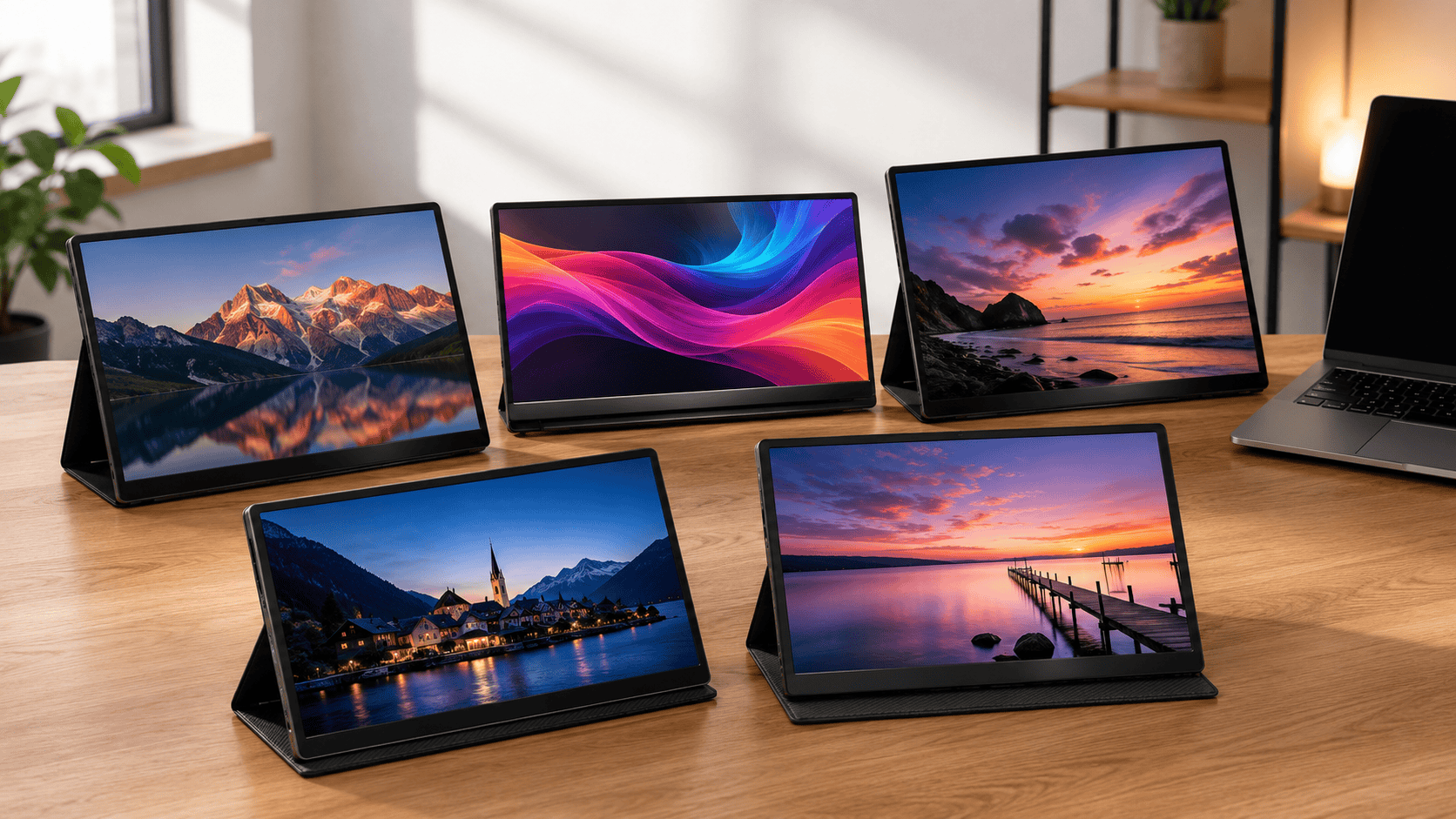
Here’s the thing nobody tells you when you’re shopping for a home office monitor: resolution is the last thing that should drive your decision.
Dell UltraSharp U2722D
The monitor that consistently tops home office reviews for color accuracy and panel quality — IPS Black panel, USB-C with 90W charging so your laptop powers off one cable, and Dell’s factory calibration means it’s accurate out of the box.
I went through about 600 reviews from hybrid workers, remote developers, and work-from-home designers across Amazon and Reddit. The pattern in the complaints is consistent — people bought the highest resolution they could afford and then wrote a frustrated review six months later because their USB-C port only delivers 45W and their laptop won’t charge properly. Or the stand doesn’t adjust high enough. Or the glare from the window makes the IPS panel useless after 2pm.
The spec that actually separates a good home office monitor from a great one is USB-C wattage. If your monitor can deliver 90W or more over USB-C, it replaces your laptop charger entirely. One cable. Clean desk. That’s the upgrade most people are actually looking for, they just don’t know how to ask for it yet.
Dell UltraSharp U2722D
27″, 4K IPS, 90W USB-C charging, factory-calibrated colour accuracy. The monitor that shows up in more hybrid work setups than any other — and based on the reviews, it’s obvious why.
| Monitor | Best for | Resolution | USB-C Power | Panel | Get it |
|---|---|---|---|---|---|
| Dell UltraSharp U2722D | Best overall | 4K (3840×2160) | 90W | IPS | Check → |
| LG 27UN850-W | Best for Mac | 4K (3840×2160) | 96W | Nano IPS | Check → |
| ASUS ProArt PA279CV | Best colour accuracy | 4K (3840×2160) | 96W | IPS | Check → |
| LG 32UN880-B | Best ergo stand | 1440p (2560×1440) | 90W | Nano IPS | Check → |
| BenQ GW2790TC | Best for eye fatigue | 1080p (1920×1080) | One-cable USB-C | IPS | Check → |
Best monitor home office: The 5 Best Home Office Monitors Reviewed
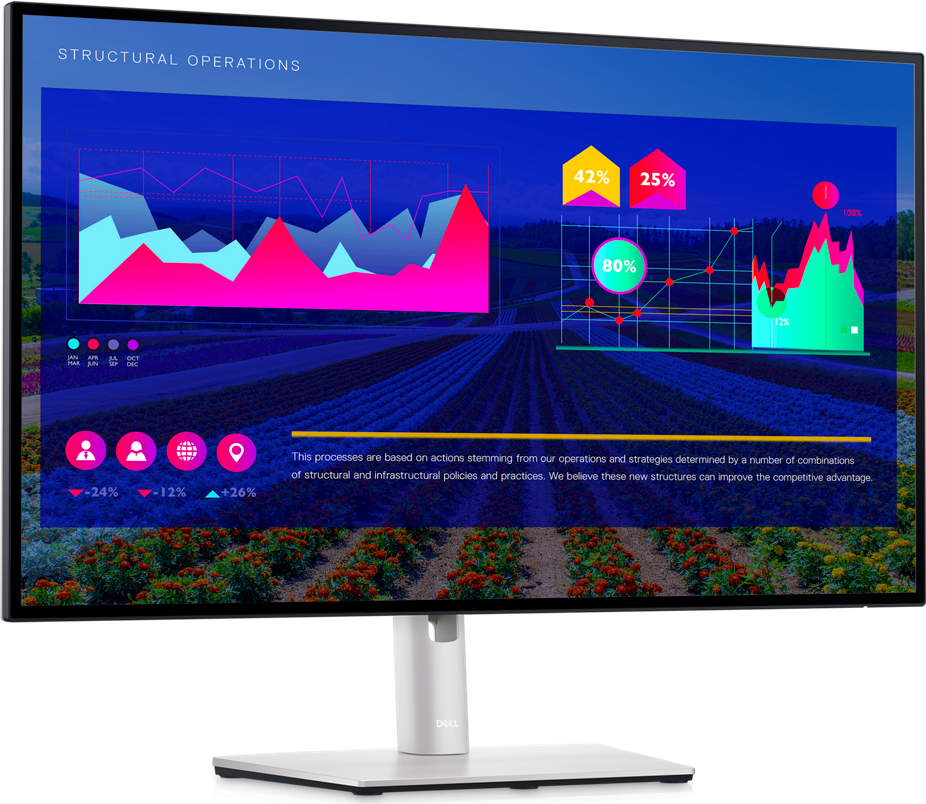
The U2722D shows up constantly in “what do you use” threads on r/workspaces and r/battlestations, and not because people are being paid to recommend it. The build quality is what gets mentioned most — the stand is smooth, the bezels are thin, and the matte panel holds up in bright rooms where glossy screens turn into mirrors.
The 90W USB-C is the actual headline feature. That wattage covers most Windows laptops and all MacBook Airs under full load. The USB hub built into the monitor adds two USB-A and one USB-C downstream port, so your keyboard, mouse, and headset go into the monitor — your desk goes from cable mess to one-cable clean in a single move.
Where the reviews get interesting is the colour accuracy. Dell factory-calibrates each unit to Delta E <2, which means what you see matches what gets printed or shared. For home office work involving documents and presentations this is irrelevant. For anyone doing creative work remotely, it’s the reason this monitor exists at its price point.
- 90W USB-C charges most laptops at full load
- Matte IPS panel handles window glare well
- Factory colour calibration included
- Build quality and stand feel premium
- 3-year Advanced Exchange warranty
- 60Hz only — not ideal if you game in the evenings
- No built-in speakers
- Stand doesn’t pivot to portrait orientation
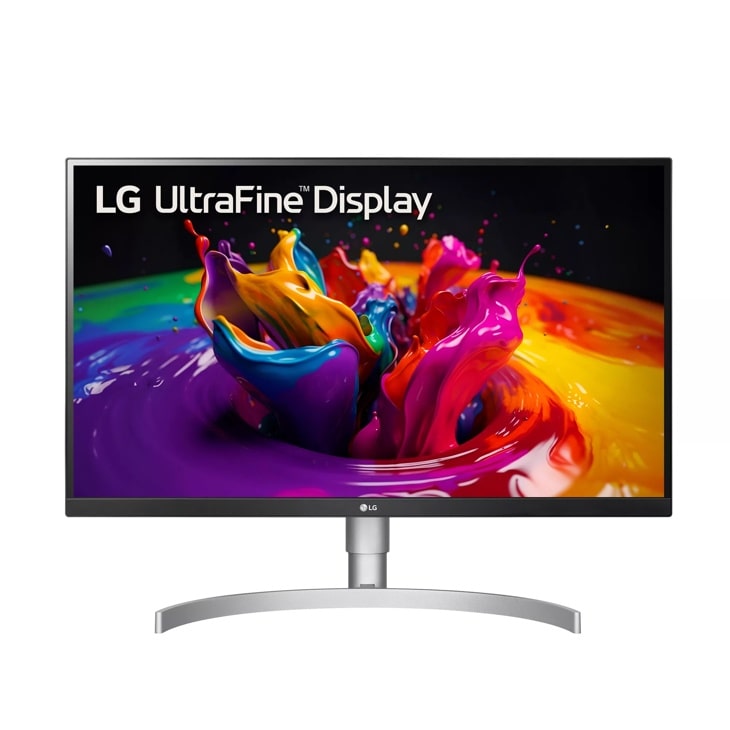
The 96W USB-C delivery is the detail that pushes this over the Dell for MacBook Pro 14″ users — Apple’s own charger runs at 96W, and the LG matches it. The Nano IPS panel (98% DCI-P3 colour coverage) is what photo editors and video producers notice. For email and spreadsheets, the difference from standard IPS is invisible.
The stand pivots to portrait orientation — useful for reviewing long documents or reading code. Reviews from tall users specifically call this out as a reason they chose the LG over the Dell.
- 96W USB-C covers MacBook Pro 14″ at full load
- Portrait pivot for document work
- Nano IPS panel with excellent colour volume
- Wide height adjustment range
- Slightly warm out of the box — needs calibration for design work
- Built-in speakers rated poorly in reviews
- 60Hz like most productivity monitors
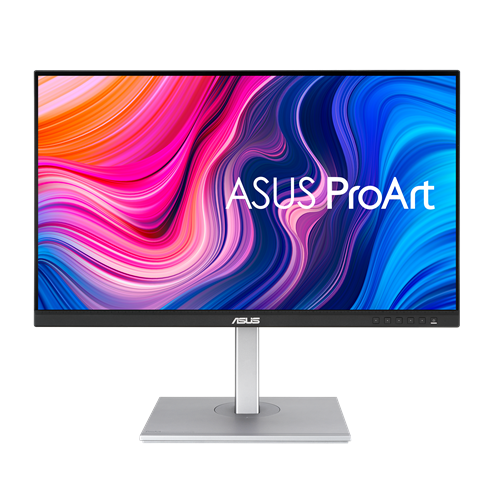
ASUS ships every ProArt PA279CV with a calibration report in the box — a printed certificate with the actual measured Delta E values for that specific unit. I went through the reviews from designers and photographers, and the colour consistency is what gets praised most often. The 96W USB-C matches the LG, and the stand includes height adjustment, tilt, swivel, and pivot.
The one pattern in negative reviews is the OSD (on-screen display menu) — it’s considered slower and more complicated than Dell’s or LG’s. For everyday use this doesn’t matter, but if you switch between colour profiles regularly, it adds friction.
- Calibration report included with each unit
- 96W USB-C charging
- Full stand ergonomics including portrait pivot
- Hardware calibration support for X-Rite / Datacolor
- OSD menus are slow compared to competitors
- Matte only — no glossy display option
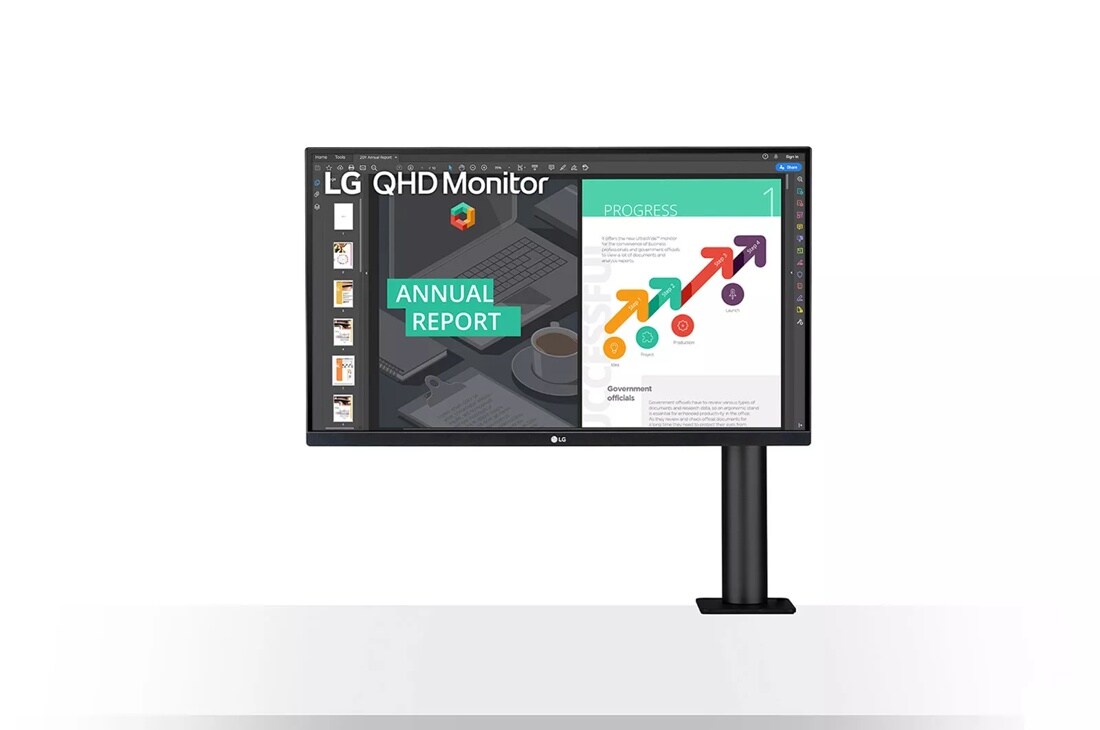
The 32UN880-B ships with a desk-clamp articulating arm instead of a traditional stand. The arm gives you full range of motion — forward, backward, side to side, height — which is the feature standing desk users and people with limited desk depth keep asking for.
The resolution step down to 1440p from 4K is barely noticeable on a 27″ screen at normal desk distances. The complaint pattern here is about the arm mechanism — a handful of reviewers note that the arm needs regular tightening to prevent drift over time.
- Articulating arm replaces separate arm purchase
- Great for standing desk users who change height often
- 90W USB-C still present despite ergonomic focus
- 1440p sharp at 27″ — less GPU-intensive than 4K
- Arm can loosen over time and needs periodic tightening
- Lower colour coverage than 4K alternatives in this roundup
- No VESA mount (arm is integrated)
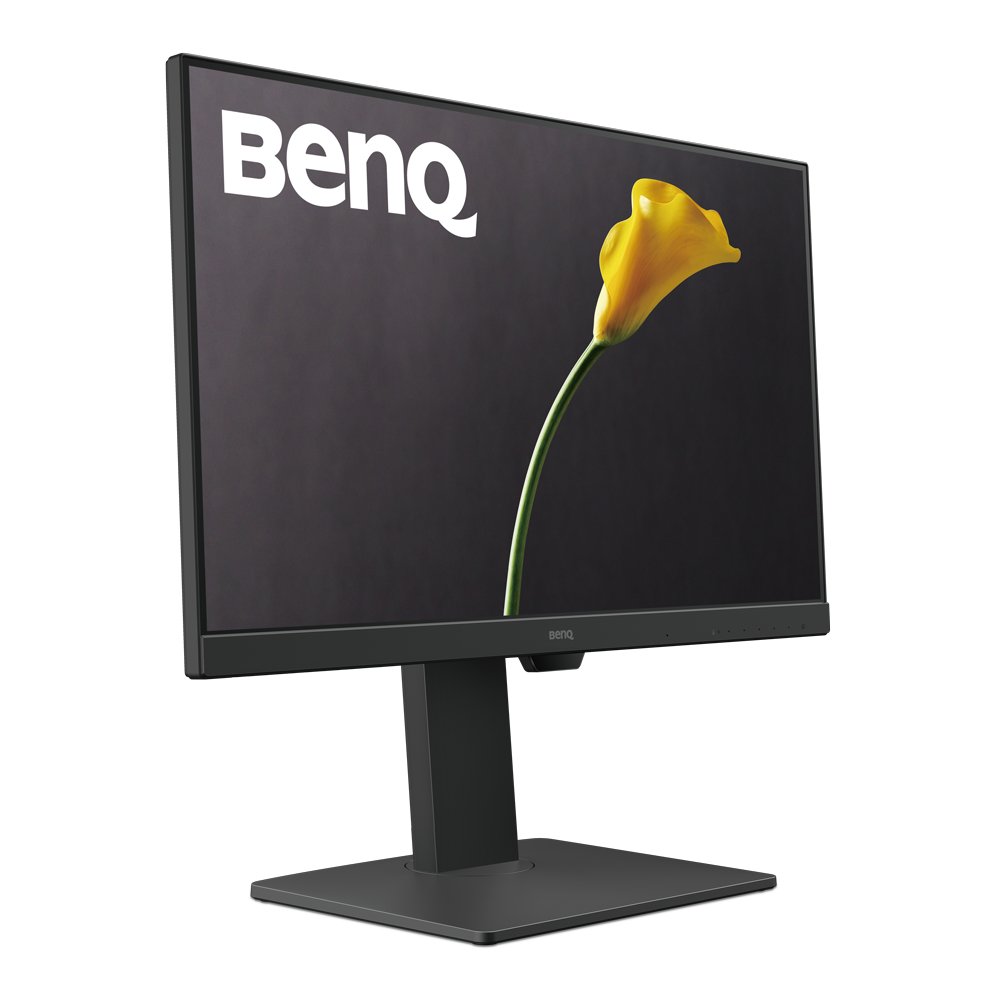
BenQ built their Eye Care technology around actual optometry research. The auto-brightness sensor adjusts based on ambient light in the room. The blue light filter preserves white balance while reducing the specific frequencies that cause eye strain — which is different from most blue light modes that just make everything look yellow.
The USB-C connection carries video, data and laptop charging over one cable, which is the whole reason to pick this over a cheaper 1080p panel. It also runs at 144Hz, which you notice in scrolling rather than in gaming. The 1080p resolution is the honest trade-off — at 27″, noticeably softer than 1440p or 4K at close viewing distances.
- Eye Care+ auto-brightness is genuinely useful for mixed lighting
- Flicker-free backlight reduces fatigue for long sessions
- 144Hz makes scrolling through documents noticeably smoother
- USB-C hub with multiple downstream ports
- 1080p at 27″ — noticeably soft at close viewing distances
- USB-C power delivery is sized for thin laptops, not high-power machines under load
- No height adjustment on the default stand
How to Choose a Home Office Monitor
The USB-C wattage rule
MacBook Air / thin Windows laptops → 65W minimum, 90W preferred
MacBook Pro 14″ → 90W minimum, 96W preferred
MacBook Pro 16″ / gaming laptops → The monitor won’t fully charge you under heavy sessions
Desktop users → USB-C wattage is irrelevant — choose on panel quality only
Resolution vs pixel density. A 27″ 4K monitor has ~163 PPI — genuinely sharp. A 32″ 4K monitor has ~138 PPI — noticeably softer. If you want crisp text on a 32″ screen, 4K is the minimum. On a 24″ screen, 1440p at ~123 PPI is competitive with 4K at a lower cost.
Panel type matters less than brightness. IPS, Nano IPS, and IPS-type panels are all adequate for home office work. The bigger variable is whether the panel is matte or glossy. Matte panels handle window glare. Glossy panels look better in controlled studio lighting. For most home offices, matte wins.
Refresh rate for home office work. 60Hz is fine for productivity. If you use your monitor for gaming in the evenings, none of the monitors in this guide will satisfy you — they’re built for different priorities.

Dell UltraSharp U2722D
For most hybrid workers — one monitor, one laptop, one USB-C cable — the Dell U2722D is the answer. The 90W charging, the IPS panel, the build quality, and the three-year warranty are the combination that shows up most reliably in reviews from people who are still happy with their purchase two years later.
MacBook Pro users: LG 27UN850-W with its 96W USB-C is the better fit.
Quick Takeaways
- USB-C wattage matters more than resolution for laptop users — check it before anything else.
- Dell UltraSharp U2722D is the most consistently reviewed home office monitor at its tier.
- MacBook Pro 14″ users should look at monitors delivering 96W, not just 90W.
- Matte panels handle home office lighting conditions better than glossy — most of the time.
- The LG 32UN880-B Ergo makes sense if you have a standing desk and want positioning flexibility without buying a separate arm.
📚 Related Articles
For in-depth display panel testing, RTINGS.com’s monitor reviews offer the most rigorous benchmarks available.
If you’re still deciding between these home office monitors and want to pair one with a proper docking setup, our USB-C docking station guide covers the connectors that matter most for single-cable desk setups.
Dell UltraSharp U2722D is the pick most readers here land on. Stock and deals shift often, so it is worth checking what it is going for right now.