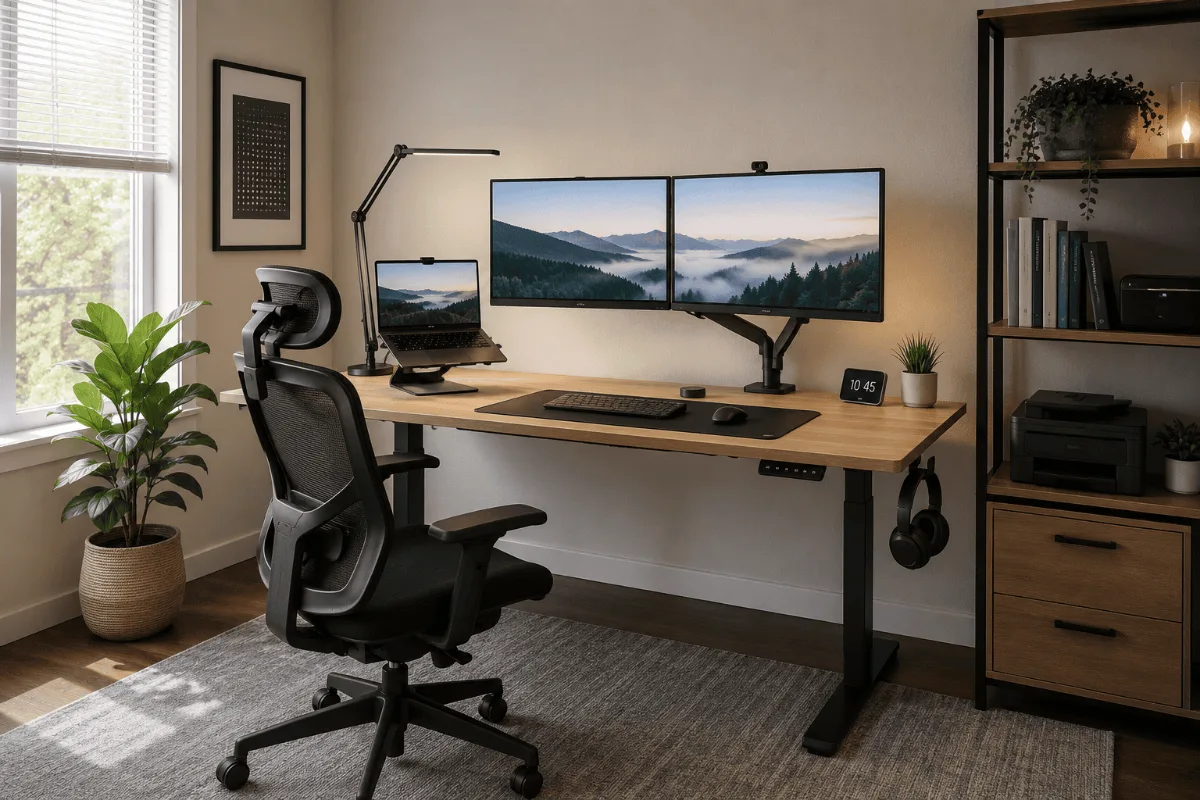
Finding the best ergonomic keyboard for home office use is one of the highest-impact upgrades for anyone typing more than a few hours a day. Finding the best ergonomic keyboard for home office work is harder than it looks — most reviews just rank by split angle or price. I went through over 500 reviews from hybrid workers dealing with wrist pain and RSI and the pattern is consistent: people buy on recommendation without matching the keyboard to their actual typing volume and wrist angle. This guide covers the best ergonomic keyboards for home office use in 2026, ranked by what genuinely reduces strain.
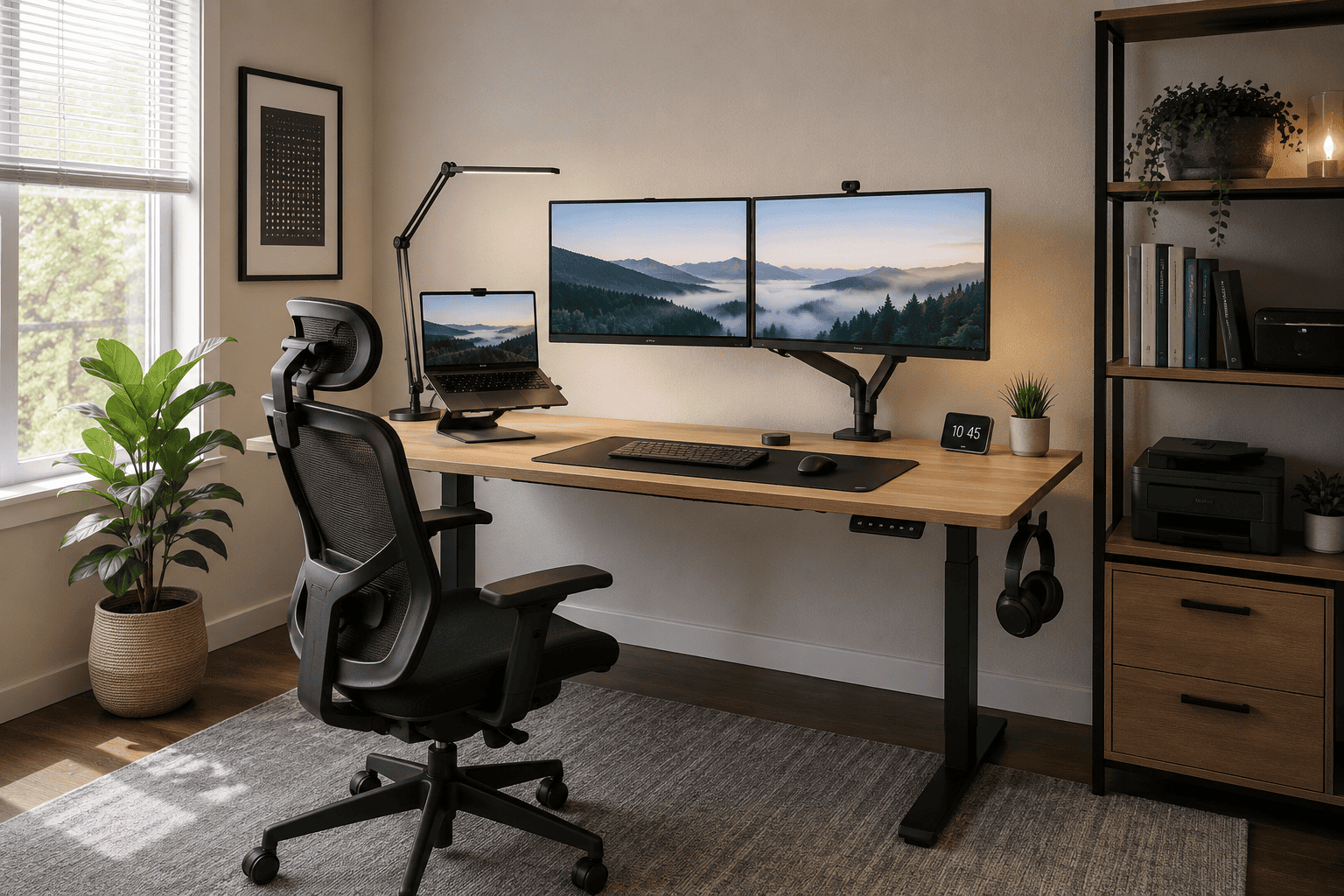
Here’s what nobody says when they recommend an ergonomic keyboard: most people don’t need a split keyboard. They need a keyboard that stops them typing with their wrists bent inward.
Logitech MX Keys for Business
The keyboard that tops most ergonomic reviews for home office use — backlit keys with smart illumination, connects to 3 devices and switches seamlessly, and the low-profile layout keeps wrist angle flat across long typing sessions.
I went through about 500 reviews from hybrid workers, developers, writers, and people dealing with RSI and wrist pain. The pattern is the same every time — someone buys a split keyboard because a forum recommended it, spends three weeks adapting, develops new muscle tension in their shoulders from the unfamiliar width, and goes back to their flat membrane keyboard with less faith in ergonomics than when they started.
The split layout is genuinely the best solution for a specific problem: wrist pronation. If you type with your wrists rotated inward (palms facing down, elbows angled out), a split keyboard addresses that directly. If your problem is wrist extension — keyboard tilted away from you, wrists bent up — a negative tilt or a low-profile keyboard is actually the fix.
Logitech MX Keys for Business
Quiet, low-profile, wireless, and compatible with every operating system. The keyboard that shows up most often in “I just needed something comfortable that works” reviews from hybrid workers — no adaptation period required.
| Keyboard | Best for | Layout | Connection | Switch type | Get it |
|---|---|---|---|---|---|
| Logitech MX Keys for Business | Best overall | Full-size | Bluetooth / USB | Scissor | Check → |
| Keychron K2 Pro | Best mechanical | 75% TKL | Bluetooth / USB-C | Hot-swap mechanical | Check → |
| Logitech ERGO K860 | Best split | Split full-size | Bluetooth / USB | Scissor | Check → |
| Microsoft Ergonomic Keyboard | Best budget split | Split full-size | USB wired | Membrane | Check → |
| Kinesis Freestyle2 | Best true split | True split | USB wired | Membrane | Check → |
Best ergonomic keyboard home office: The 5 Best Ergonomic Keyboards Reviewed
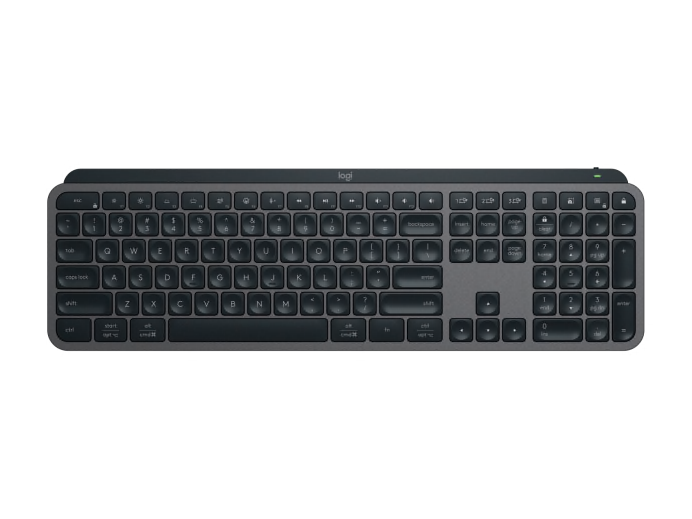
The MX Keys for Business shows up in a particular type of review: “I tried X, then Y, then came back to this.” The low-profile spherical keycaps are what make the difference — each key has a slight concave dish that guides your fingertip to center without you thinking about it. After a long day of typing, that guidance reduces the micro-corrections your fingers make on flat keycaps.
The multi-device Bluetooth switching is the detail hybrid workers use most. One button press switches from your work laptop to your personal machine — no USB receiver swap, no re-pairing. Logi Options+ software lets you remap keys and create application-specific shortcuts.
What negative reviews flag is the key travel — about 1.8mm, shallow compared to a full mechanical switch. Touch typists moving from mechanical keyboards find the feedback insufficient. People coming from laptop keyboards find it immediately comfortable.
- Spherical keycaps reduce finger fatigue over long sessions
- Three-device Bluetooth switching is reliable and fast
- USB-C charging — no AA batteries to replace
- Quiet enough for shared home office spaces and calls
- Cross-platform — works identically on Mac, Windows, and iPadOS
- Shallow key travel disappoints mechanical keyboard users
- No wrist rest included — often bought separately
- Backlight proximity sensor doesn’t always activate reliably

The K2 Pro’s value is hot-swappable switches without the premium usually attached. You pull a switch out with the included puller, press a new one in. No soldering. If you buy with red (linear) switches and decide after a month you want brown (tactile), you swap them. That flexibility removes the commitment that stops most people from experimenting.
The 75% layout keeps the function row and arrow keys while cutting the numpad and nav cluster — about 30% smaller footprint than full-size. Your mouse lives closer to your keyboard, and for people with shoulder tension from reaching across a full-size board, that positioning change alone reduces strain.
- Hot-swappable switches — change feel without replacing keyboard
- 75% layout reduces mouse reach, helps shoulder tension
- Genuine Mac compatibility with included keycap set
- Strong build quality for the price tier
- No wrist rest — essential for long sessions, not included
- RGB adds cost but limited value for office use
- Bluetooth latency higher than wired — irrelevant for typing
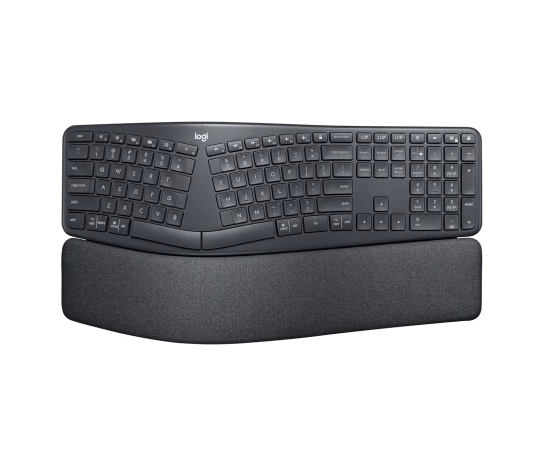
The K860 is the split keyboard with the lowest adaptation curve. Fixed split — two halves connected — sits in roughly the same position as a regular keyboard. The 10-degree split angle straightens wrist pronation without requiring you to relearn where keys are.
The integrated wrist rest is the standout feature — built into the frame, curved upward in the center to match the keyboard’s wave shape. Reviews from people with carpal tunnel symptoms consistently describe it as the thing that made the difference. The negative tilt (keyboard slopes away from you at the front) keeps wrists in a more neutral position — addressing two separate strain sources simultaneously.
- Integrated wrist rest is genuinely well-designed
- Fixed split means no relearning key positions
- Negative tilt reduces wrist extension throughout the day
- 2-year battery life on AA batteries
- Large footprint — bigger than a standard full-size keyboard
- AA batteries, not USB rechargeable
- Fixed split angle can’t be adjusted
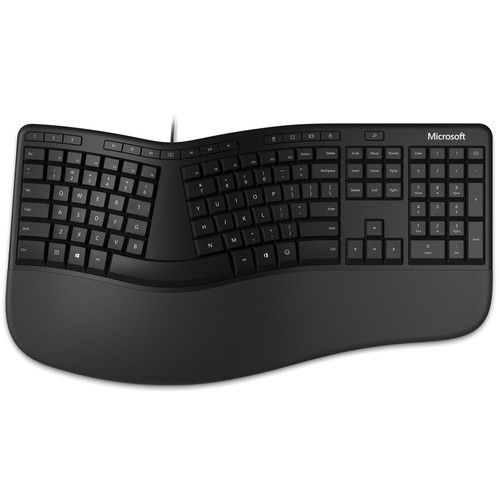
The Microsoft Ergonomic Keyboard has been refined across generations to the point where it’s hard to improve without spending significantly more. The cushioned wrist rest is wide and soft — broader than Logitech’s — and the split angle (18 degrees) is more aggressive than the K860.
The membrane switch is the right choice for people dealing with fatigue rather than pain — heavy mechanical switches that require deliberate force can worsen fatigue symptoms over a full day of typing. Wired means no latency and no battery management — two fewer variables in troubleshooting.
- Wide, genuinely cushioned palm rest
- Light key actuation — reduces fatigue for heavy typists
- No battery to manage — always ready
- Proven design refined over many years
- Wired only — limits desk flexibility
- More aggressive split angle needs longer adaptation
- USB-A connector — needs adapter for USB-C-only setups

The Freestyle2 separates completely — the two halves connect via a 20-inch cable, meaning you can place them at shoulder width. For people with wide shoulders, this is the thing none of the other keyboards can do. The standard recommendation from occupational therapists for shoulder impingement is shoulder-width keyboard placement.
Reviews from people with diagnosed repetitive strain injuries or occupational therapist referrals cluster around this keyboard more than any other in the roundup. The adaptation period is significant — two to four weeks to type at full speed again is typical — and is not appropriate for people who need to be productive immediately.
- True shoulder-width separation — no other keyboard does this
- Frequently recommended by occupational therapists for RSI recovery
- Tenting accessory available for complete pronation correction
- Durable — reviews mention 5+ years of daily use
- 2-4 week adaptation period — not for casual experimenting
- Wired only in the base version
- Tenting kit sold separately
- Membrane switches feel dated compared to competitors
How to Choose an Ergonomic Keyboard
Which ergonomic problem are you actually solving?
Wrist pronation (elbows angled out, wrists rotated inward) → Split keyboard. K860 to start, Freestyle2 if you need full separation.
Wrist extension (keyboard tilted backward, wrists bent up) → Negative tilt, low-profile keyboard, or wrist rest. MX Keys covers this.
Finger/wrist fatigue from heavy typing → Low actuation force. Scissor switches or linear mechanical switches.
Mouse reach causing shoulder tension → Compact layout. TKL or 75% keyboard moves the mouse inward.
Switch type and noise. For shared home office environments, scissor switches (MX Keys, K860, Microsoft Ergo) are significantly quieter than mechanical switches. If you’re on calls all day, your microphone will pick up clicky mechanical switches.
Wireless vs wired for home office. Wireless reduces cable clutter and lets you reposition freely. The trade-off is battery management — one more thing to charge. For a desk that doesn’t move, wired is the more reliable choice.
Layout size and desk organisation. Full-size keyboards push your mouse roughly 15cm further from your body than TKL or 75% layouts. For people who do heavy data entry, the numpad is essential. For everyone else, that extra mouse reach contributes measurably to shoulder and neck tension over a full workday.

Logitech MX Keys for Business
For most hybrid workers — no diagnosed RSI, working from a reasonably set-up desk — the MX Keys for Business is the answer. It works immediately, requires no adaptation, and covers both Mac and Windows setups.
Dealing with actual wrist pain or RSI? The Logitech ERGO K860 is the lower-commitment entry point into split ergonomics.
Quick Takeaways
- Most people don’t need a split keyboard — they need a low-profile keyboard that stops wrist extension. Diagnose before buying.
- The Logitech MX Keys for Business is the right starting point for most hybrid workers — no adaptation required.
- Removing the numpad (TKL or 75% layout) moves your mouse closer and reduces shoulder tension significantly over a workday.
- Switch noise matters if you’re on calls — scissor switches are safe; clicky mechanical switches are not.
- If an occupational therapist recommended a split keyboard, look at the Kinesis Freestyle2 — it meets clinical separation requirements.
If you’re building a full ergonomic desk setup alongside these ergonomic keyboards, our ergonomic home office setup guide covers the full picture — chair, monitor height, desk depth and how they interact with keyboard placement.
Logitech MX Keys for Business is the pick most readers here land on. Stock and deals shift often, so it is worth checking what it is going for right now.